

You have probably seen both setups on YouTube, Reddit, and every “dream desk” Instagram post.
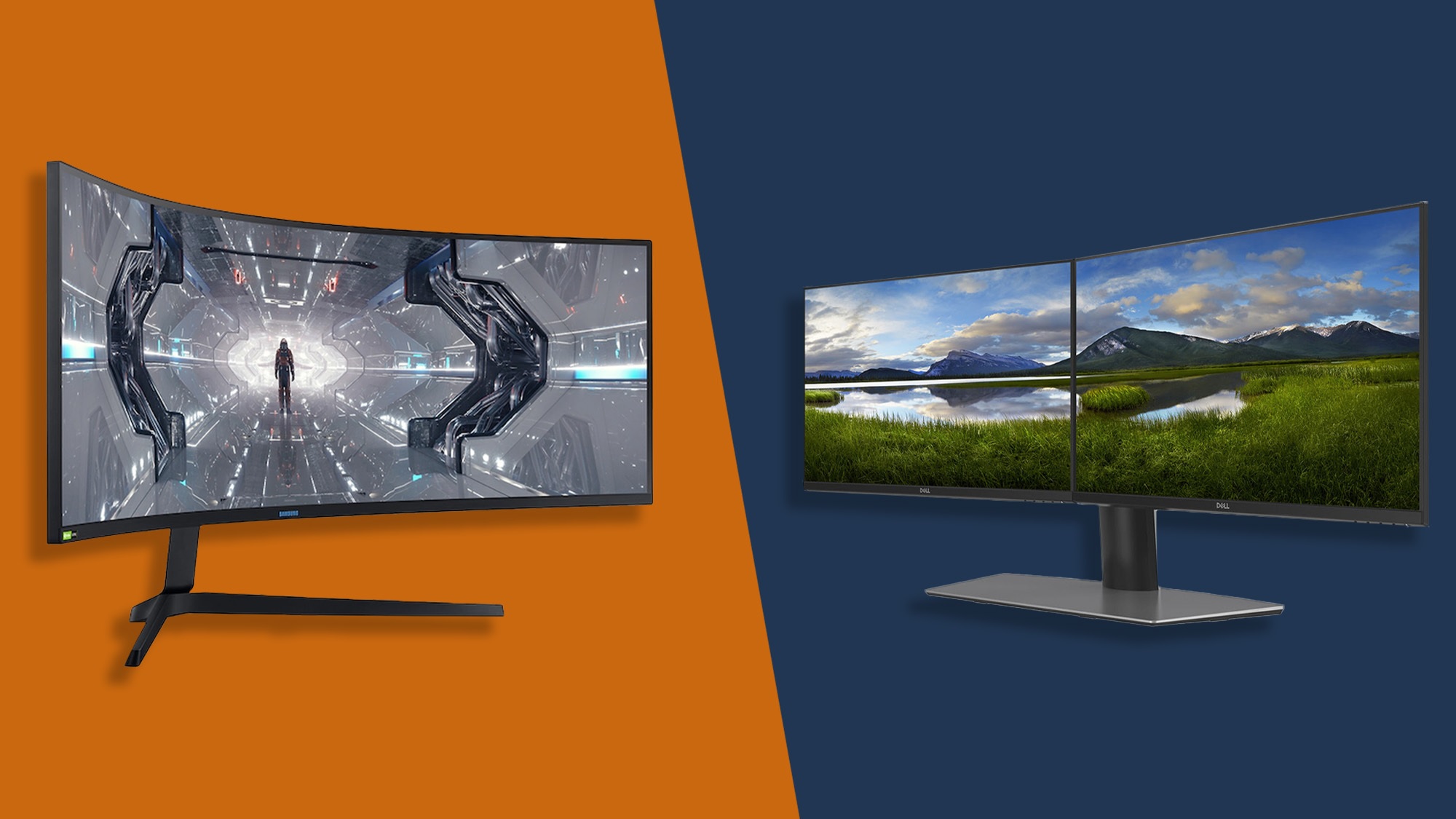
On one side: the best dual monitor setup, clean symmetry, two displays perfectly aligned like a productivity power couple.
On the other: a massive curved panel, the best ultrawide monitor stretching across your desk like mission control.
So, which actually boosts productivity more?
Is an ultrawide monitor productivity better for focus and immersion, or does ultrawide vs 2 monitors come down to personal workflow? And if you are building a serious programming monitor setup or remote work station, which makes more sense long term?
Let’s break this down properly, not just aesthetically but practically.
We will compare:
- Workflow efficiency
- Multitasking flexibility
- Desk space and ergonomics
- Cost and hardware needs
- Best use cases for each
By the end, you will know whether your next upgrade should be a dual monitor desk setup or an ultrawide monitor for work.
Why this debate matters more in 2026
Work has changed. Even more than before.
In 2026, your typical workday might include:
- Slack or Teams open all day
- 20 browser tabs
- Video meetings
- Spreadsheets
- AI tools running in the background
- Coding environments
- Design software
Modern productivity is about screen real estate. Not in a “bigger is better” way, but in a “how efficiently can you manage information” way.
If you are redesigning your office, you may also want to explore our best work-from-home setups for 2026 guide, where display choices play a major role in overall productivity and comfort.
But let’s zoom in on the core question.
Dual monitor vs ultrawide: the core difference
At a basic level:
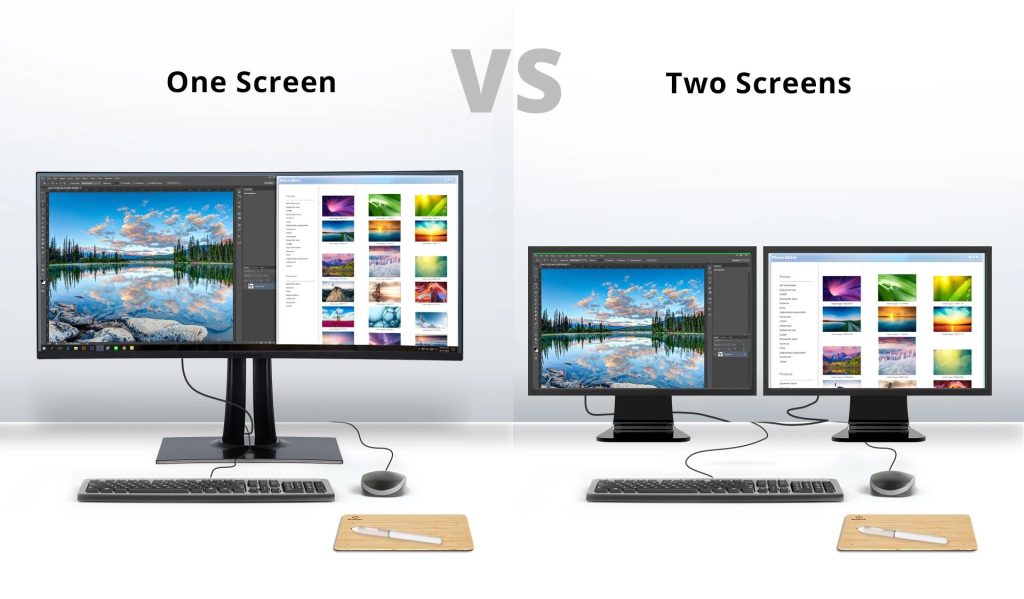
Dual monitor setup
- Two separate displays
- Physical bezel in between
- Independent positioning
Ultrawide monitor
- One large, continuous screen
- No central bezel
- Often curved for immersion
Sounds simple, but this design difference changes how you work.
With dual monitor vs ultrawide, you are not just choosing screens. You are choosing how your brain organizes information.
Let’s explore each option properly, starting with the classic.
The best dual monitor setup: why so many professionals swear by it
Dual monitors have been the gold standard for years.
Why?
They are flexible, affordable, and extremely practical.
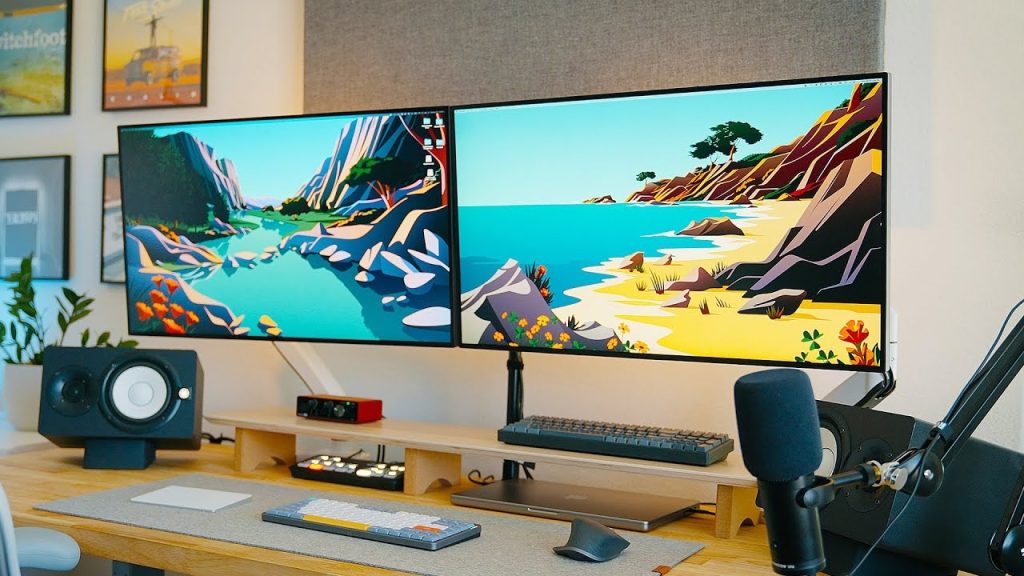
A typical best dual monitor setup might look like:
- Two 24 or 27-inch monitors
- Mounted on a dual monitor stand
- Slightly angled inward
- One primary display, one secondary
This setup allows you to:
- Keep your main task full screen on one monitor
- Use the second monitor for references, chat, or monitoring tools
For programmers, this is especially powerful.
A strong programming monitor setup with dual displays allows:
- Code editor on one screen
- Browser preview or documentation on the other
- Or a terminal on one, an IDE on the other
It creates mental separation between tasks. Many developers love that clarity.
Advantages of a dual monitor desk setup
- True separation of tasks
You can dedicate one screen to focus work and one to communication or reference material. - Easy window management
No need for complex window snapping. Each screen acts independently. - Cost flexibility
You can mix and match models. Start with one monitor, add another later. - Upgrade path
Replace one monitor without replacing the entire setup. - Ideal for vertical stacking
Some users rotate one display vertically for coding or document editing.
If you are exploring high-quality display options, our guide to the best gaming monitors also covers panels that double as excellent productivity screens.
Downsides of dual monitors
Of course, nothing is perfect.
- The bezel gap in the middle
- More cables
- Slightly more desk clutter
- Requires careful alignment for ergonomics
For some people, the physical split between screens breaks immersion.
And this is where ultrawide enters dramatically.
Ultrawide monitor productivity: does one massive screen win?
Now let’s step into the cinematic side of the debate.
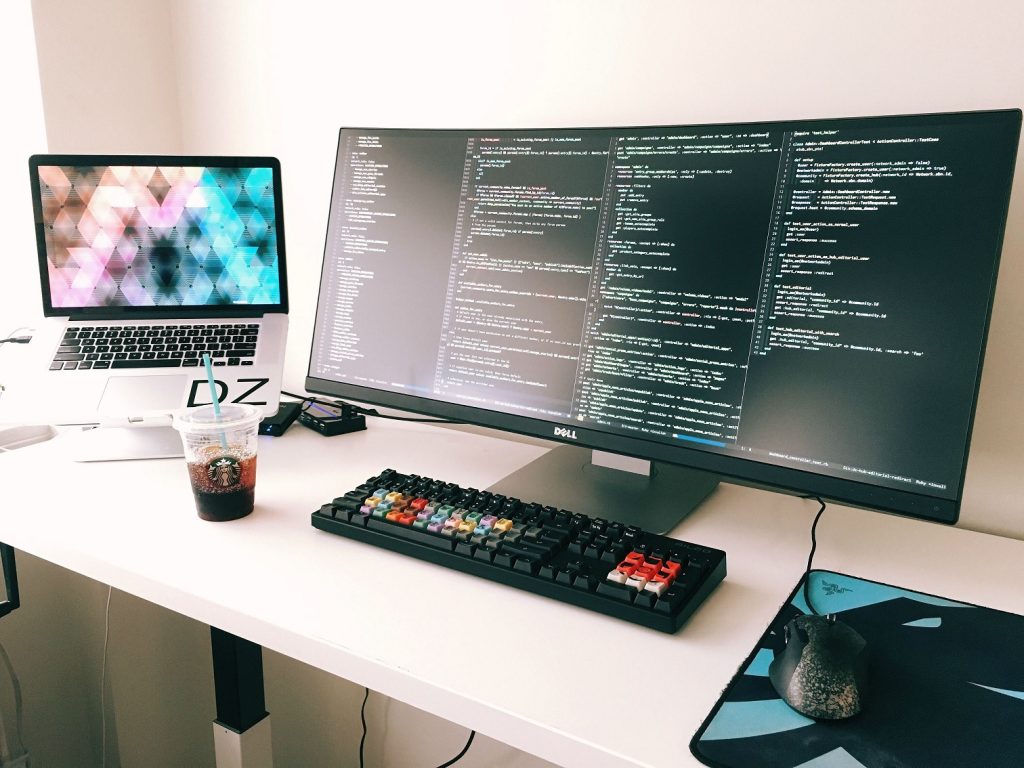
An ultrawide monitor for work is typically:
- 34 inch, 38 inch, or even 49 inch
- 21:9 or 32:9 aspect ratio
- Often curved
- One seamless display with no central bezel
At first glance, ultrawide monitor productivity feels superior simply because of immersion. There is no physical split. No gap in the middle. Just one giant canvas.
But productivity is not about drama. It is about workflow.
So let’s break down where ultrawide vs 2 monitors actually changes how you work.
The biggest advantage: seamless multitasking
The strongest argument for ultrawide vs 2 monitors is continuity.
With an ultrawide:
- You can drag windows freely across the entire width
- No bezel interrupts charts, timelines, or design canvases
- Large spreadsheets stretch beautifully across the screen
For creative professionals, video editors, and analysts, this continuous horizontal space can feel transformative.
Instead of thinking in “left monitor vs right monitor,” you think in zones.
For example:
- Left third: Slack or Teams
- Center: Main project
- Right third: Browser or documentation
With proper window snapping tools, ultrawide monitor productivity can feel extremely fluid.
Ultrawide monitor for work: ideal use cases
Ultrawides are especially powerful for:
Design and content creation
- Timeline-based editing
- Large Photoshop canvases
- Wide dashboards
Finance and data analysis
- Multiple spreadsheets side by side
- Long horizontal data tables
Immersive focus work
- Writing
- Research
- Strategy planning
For some professionals, the lack of a central split helps maintain focus. It feels less “fragmented” than a dual monitor desk setup.
If your workspace emphasizes clean aesthetics, you might also enjoy our minimalist workspace setups tech for focus and creativity guide, where ultrawides often fit beautifully.
Where ultrawide struggles
Now for the reality check.
- Window management can require software
Unlike dual monitors, you often need window snapping tools to divide the screen efficiently. - Less physical separation
Some people prefer clear boundaries between tasks. A single large display can feel visually overwhelming. - All or nothing upgrade
If you want to upgrade, you replace the entire monitor, not just half of it. - Desk depth requirements
Large ultrawides need deeper desks for a comfortable viewing distance.
And here is something many buyers underestimate:
A 34-inch ultrawide does not equal two 27-inch monitors in total usable space. It is wide, but not necessarily taller. Vertical space matters, especially for programming monitor setup workflows.
Programming monitor setup: ultrawide edition
For developers, ultrawide vs 2 monitors becomes very personal.
With an ultrawide:
- IDE can sit centered
- Terminal and browser preview sit side by side
- No bezel breaking long lines of code
However, many programmers still prefer dual monitors because:
- One display can be rotated vertically
- Clear task separation reduces context switching
- Debugging and reference docs feel more structured
There is no universal winner here. It depends on how your brain organizes work.
Best ultrawide monitor: what to look for
If you are considering the best ultrawide monitor for productivity, prioritize:
- 3440 x 1440 resolution or higher
- IPS or high-quality VA panel
- Adjustable stand
- USB-C with power delivery
- At least 100Hz refresh for smoothness
Do not overspend on gaming features if your primary goal is ultrawide monitor productivity. Color accuracy, brightness, and ergonomics matter more for work.
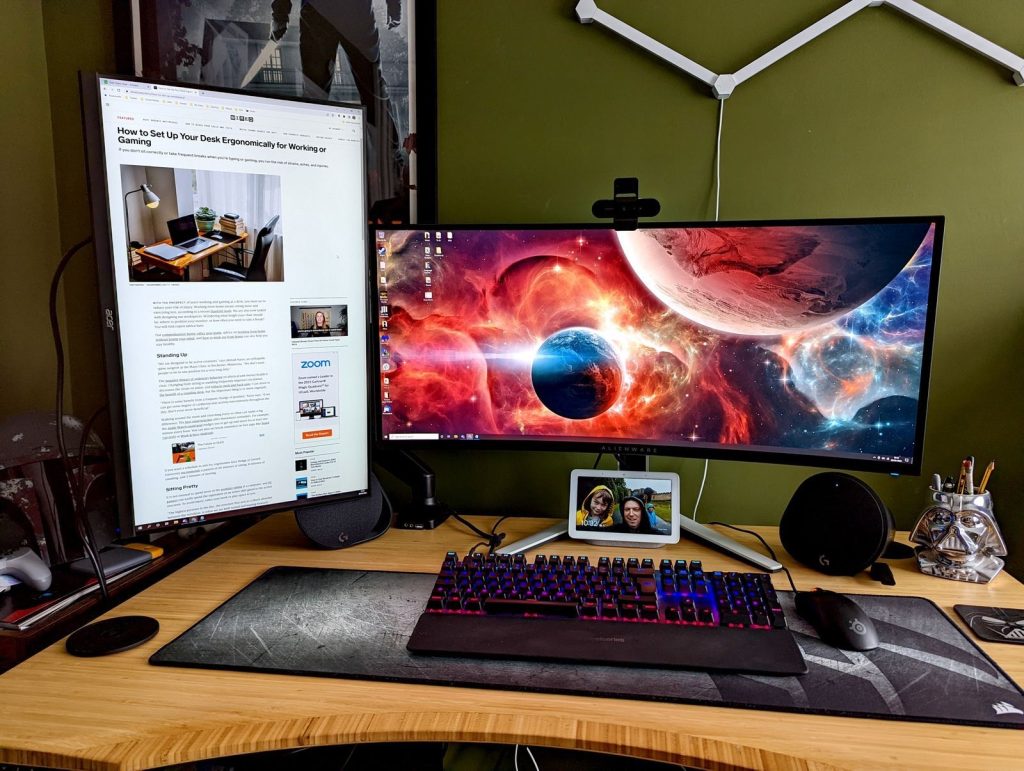
Dual monitor vs ultrawide: head-to-head productivity comparison
Now that we have explored both setups individually, let’s put dual monitor vs ultrawide into a real-world productivity cage match.
No marketing hype. Just practical outcomes.
We will compare them across five critical factors:
- Multitasking efficiency
- Focus and cognitive load
- Ergonomics
- Cost and upgrade flexibility
- Desk space and aesthetics
If you are building the best dual monitor setup or shopping for the best ultrawide monitor, this is where the decision becomes clearer.
1. Multitasking efficiency
Dual monitor desk setup
- True physical separation of tasks
- Easy to dedicate one screen to communication tools
- Natural workflow split between primary and secondary tasks
For many professionals, this feels intuitive. Your brain associates the left monitor with reference material and the right monitor with active work.
Ultrawide monitor productivity
- Seamless horizontal multitasking
- No bezel interruption
- Flexible window zones
This works brilliantly for tasks that benefit from visual continuity, such as design timelines or financial dashboards.
Verdict
If your workflow is structured and task separated, dual monitor vs ultrawide leans toward dual monitors. If your workflow is fluid and canvas-based, Ultrawide often feels more natural.
2. Focus and cognitive load
This is where things get surprisingly psychological.
Dual monitors
- Clear boundaries reduce visual clutter
- Easier to ignore the secondary screen if needed
- Feels organized and compartmentalized
Ultrawide
- Everything lives on one massive surface
- Can feel immersive
- But may also feel overwhelming if not managed properly
For some users, ultrawide vs 2 monitors becomes a focus question. Do you prefer distinct zones or one continuous digital desk?
Verdict
Highly personal. Structured thinkers often prefer dual monitors. Visual thinkers often prefer ultrawide.
3. Ergonomics and neck movement
Best dual monitor setup
- Requires careful alignment
- Primary monitor centered, secondary slightly angled
- Poor alignment can cause neck strain
Dual monitor stand solutions help reduce clutter and improve alignment, especially when both monitors are mounted at equal height.
Ultrawide monitor for work
- Single-centered display
- Natural horizontal eye movement
- Less head turning if properly positioned
However, very large 49-inch ultrawides may require more eye travel across the width.
If you are refining your overall office ergonomics, our ergonomic desk setups explained guide dives deeper into how layout affects concentration and long-term comfort.
Verdict
When properly configured, both are ergonomic. Poor setup makes either uncomfortable. A dual monitor stand is almost essential for optimal alignment.
- Cost and upgrade flexibility
Dual monitors
- Can start with one monitor and add another later
- Easier to replace one screen
- More budget flexibility
- Wide variety of the best monitors for dual setup at different price points
Ultrawide
- Higher upfront cost
- All-in-one investment
- If it fails, the entire display is replaced
In terms of pure value, ultrawide vs 2 monitors often favors dual monitors for budget-conscious professionals.
Verdict
Dual monitors usually offer better upgrade flexibility and cost scaling.
5. Desk space and aesthetics
Dual monitor desk setup
- Two stands or one dual monitor stand
- More cables
- Slightly busier appearance
Ultrawide
- One clean display
- Fewer cables
- Minimalist aesthetic
If you are aiming for a visually clean workspace similar to what we discussed in best work-from-home setups for 2026, ultrawide often wins on aesthetics.
Verdict
Ultrawide wins for visual simplicity. Dual monitors win for modular practicality.
Quick comparison summary
Choose dual monitors if you:
- Multitask heavily with distinct tasks
- Prefer clear separation
- Want flexible upgrades
- Need vertical screen rotation for programming monitor setup
Choose ultrawide if you:
- Work with large timelines or spreadsheets
- Prefer seamless multitasking
- Value minimalist desk aesthetics
- Want one centered focal display
There is no universal winner in dual monitor vs ultrawide. The real answer depends on how your brain processes information and how your workflow is structured.
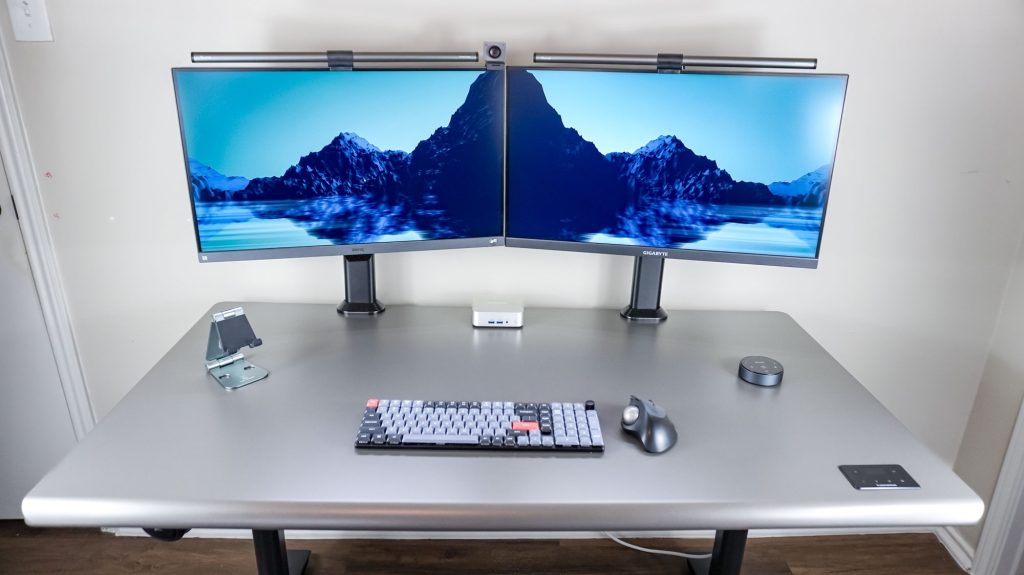
Buying guide: how to choose the right setup for your workflow
You now know the strengths of dual monitor vs ultrawide. Let’s translate that into buying decisions you will not regret six months from now.
Whether you are building the best dual monitor setup or hunting for the best ultrawide monitor, these practical considerations matter more than brand hype.
If you are choosing a dual monitor desk setup
Start with clarity, not symmetry.
Decide on your primary monitor
Your main screen should have:
- At least 1440p resolution
- IPS panel for better viewing angles
- Adjustable stand or VESA mount support
- Good brightness for long work sessions
Your secondary monitor can match, but it does not always have to be identical.
For a clean and ergonomic build, a dual monitor stand is strongly recommended. It:
- Frees up desk space
- Aligns both displays properly
- Reduces neck strain
- Improves cable management
Best monitors for dual setup: what to prioritize
For most professionals:
- 24 to 27 inch size
- 2560 x 1440 resolution
- 75Hz to 144Hz refresh rate
- Thin bezels
For programming monitor setup specifically:
- Consider rotating one monitor vertically
- Look for monitors with pivot support
- Prioritize sharp text clarity
Vertical orientation is one of the biggest advantages in the ultrawide vs 2 monitors debates. Long code files, documents, and logs become much easier to scan.
When dual monitors are the smartest choice
Choose dual monitors if you:
- Code daily
- Compare documents side by side
- Frequently share one screen in meetings
- Want future upgrade flexibility
For developers and analysts, the best dual monitor setup often feels like a structured productivity machine.
If you are choosing an ultrawide monitor for work
An ultrawide monitor productivity setup is about immersion and simplicity.
Step 1: Choose the right size and resolution
Common sweet spots:
- 34 inch at 3440 x 1440
- 38 inch at 3840 x 1600
- 49-inch for extreme multitasking
For most professionals, 34 or 38 inches hits the perfect balance between space and practicality.
Step 2: Focus on ergonomics
Look for:
- Height adjustment
- Tilt and swivel support
- USB-C connectivity with power delivery
A curved panel helps reduce eye strain by keeping edges at a consistent distance.
Best ultrawide monitor features for productivity
When shopping for the best ultrawide monitor, prioritize:
- High pixel density for sharp text
- 100Hz or higher refresh rate for smooth scrolling
- Reliable color accuracy
- An integrated KVM switch if you use multiple devices
Avoid overspending on ultra-high refresh rates unless you also game heavily.
Profession-based recommendations
Let’s make this simple and decisive.
Software developer
Best choice: Dual monitor desk setup
Why: Clear separation, vertical screen option, structured coding flow
Video editor or designer
Best choice: Ultrawide monitor for work
Why: Seamless timeline and large canvas space
Financial analyst
Best choice: Ultrawide vs 2 monitors leans ultrawide
Why: Wide spreadsheets benefit from continuous layout
Remote corporate professional
Best choice: Dual monitors
Why: One screen for meetings, one for active work
Hybrid creative and technical role
Best choice: Personal preference, but a 38-inch ultrawide often balances both
Final verdict: which boosts productivity more?
Here is the honest answer.
Dual Monitor vs Ultrawide is not about which is objectively better. It is about how your brain organizes information.
Dual monitors boost productivity when:
- Tasks are distinct
- You value separation
- You multitask aggressively
Ultrawide boosts productivity when:
- Tasks are visually continuous
- You value immersion
- You prefer a clean, minimalist desk
If you are upgrading your entire office, pairing your monitor choice with insights from the best work-from-home setups for 2026 ensures everything from chair height to lighting supports your display decision.
In 2026, productivity is not just about more screen space. It is about smarter screen space.
FAQs
Is a dual monitor better than an ultrawide for productivity?
Dual monitor vs ultrawide depends on workflow. Dual monitors are better for structured multitasking and a programming monitor setup. Ultrawide excels in immersive, visually continuous work.
Is ultrawide monitor productivity actually higher?
For designers, editors, and spreadsheet-heavy users, ultrawide monitor productivity can feel higher due to seamless layout. For structured multitasking, dual monitors often feel more efficient.
What is the best dual monitor setup?
The best dual monitor setup typically includes two 24 to 27-inch 1440p monitors mounted on a dual monitor stand, with one screen dedicated to primary work and the other for reference or communication tools.
Is ultrawide vs 2 monitors cheaper?
Ultrawide monitors usually have a higher upfront cost. Dual monitors offer more flexible pricing and upgrade paths.
