


Why USB-C hubs suddenly feel complicated
If you’ve ever searched for the best USB-C hub or dock, you already know the pain. Dozens of ports, mysterious wattage numbers, Thunderbolt logos, and phrases like “USB-C hub dual monitor” or “Thunderbolt 4 dock” are used as if everyone’s expected to understand them.
Here’s the truth: most people don’t need half the features manufacturers advertise. But the features you do need? They absolutely matter.
Whether you’re setting up a sleek MacBook workstation, upgrading your home office, or just tired of playing “port roulette” every time you plug something in, this guide breaks down exactly which specs actually matter in a USB-C docking station and which are just shiny marketing.
We’ll cover:
- Power delivery and charging limits
- Display support and dual monitor setups
- Thunderbolt vs standard USB-C
- Port selection that actually makes sense
- Real-world brand differences like anker USB-C hub and the Belkin USB-C hub
By the end, you’ll know how to confidently choose the right USB-C hub for a MacBook, Windows laptop, or work setup, without overspending on features you’ll never use.
Let’s start with the most misunderstood spec of all: power delivery.
Power delivery – the spec that can make or break your setup
If your hub can’t charge your laptop properly, nothing else matters.
Power delivery (PD) determines how much power your USB-C hub laptop charger can deliver to your device. This is where a cheap USB-C multiport adapter and a serious USB-C docking station start to separate.
Here’s what you need to know.
Check your laptop’s charging requirement
Most ultrabooks need between 45W and 65W.
High-performance machines like a MacBook Pro 16-inch may require 96W or even 140W, depending on the model.
If your hub only supports 60W passthrough and your laptop needs 96W, it will technically charge, but slowly. Under heavy load, it may even lose battery while plugged in. Not ideal.
Understand passthrough vs built-in power
There are two common types:
- Pass-through hubs: Plug your original charger into the hub. The hub powers the laptop.
- Powered docks: The dock has its own large power brick and distributes power to the laptop and accessories.
If you’re building a full desk setup similar to what we described in our guide to minimalist workspace setups, a powered dock is usually the smarter long-term investment. One cable to your laptop, everything else handled.
Real-world recommendation ranges
For 2026 setups in the US, UK, and Canada, here’s a simple cheat sheet:
- 60W: OK for lightweight laptops and tablets
- 85W to 100W: Ideal for most modern ultrabooks
- 100W+: Best for MacBook Pro and performance laptops
If you’re shopping for the best USB-C hub for a MacBook, aim for at least 85W to stay future-proof.
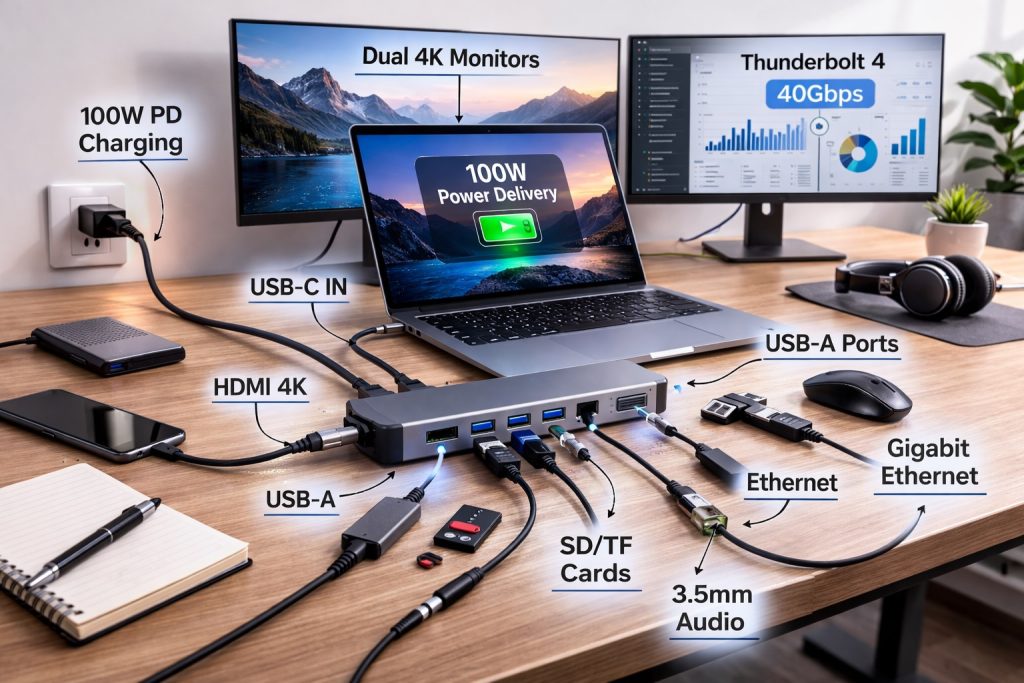
Many mid-range USB-C hubs support 85W to 100W passthrough, while higher-end Thunderbolt 4 dock models typically offer 96W or more and provide better stability.
Power delivery is not the sexy spec. It won’t impress your friends. But it will quietly determine whether your desk setup feels premium or frustrating.
Display support and dual monitor specs: what actually determines if it works
If power delivery is the heart of your setup, display support is the brain. And this is where most buying mistakes happen.
You’ll see terms like USB-C dual-monitor hub, 4K support, HDMI 2.1, DisplayPort 1.4, MST, and Thunderbolt 4 dock used like confetti. But here’s what really matters in the real world.
First: USB-C is a connector, not a guarantee
This is the biggest misconception.
Just because your laptop has USB-C does not mean it supports video output, dual monitors, or 4K at 60Hz. USB-C is only the port shape. What determines capability is what protocol runs underneath it:
- USB 3.2 with DisplayPort Alt Mode
- Thunderbolt 3
- Thunderbolt 4
- USB4
If you want serious display performance, a Thunderbolt 4 dock is the safest bet. It guarantees 40 Gbps bandwidth and supports multiple high-resolution displays without compromising performance.
If you’re running a powerful setup like those featured in our dual monitor setup guide, you absolutely need to pay attention to this spec.
Second: macOS and Windows behave differently
This is where many people get surprised.
On most Windows laptops that support DisplayPort Multi Stream Transport, a USB-C docking station can drive two external monitors independently.
On many MacBook models with standard USB-C (non-Thunderbolt) ports, dual external displays often mirror instead of extending, unless you’re using Thunderbolt or a DisplayLink-based dock.
So if you’re searching for the best USB-C hub for a MacBook, double-check:
- Does your Mac support multiple external displays natively?
- Does the hub use Thunderbolt or DisplayLink?
Otherwise, your dream dual 4K workspace might turn into two identical screens showing the same spreadsheet. Not ideal.
Third: resolution and refresh rate matter more than “number of ports.”
Manufacturers love saying:
- Supports dual 4K
- Supports 8K output
- HDMI 2.1 included
But they don’t always make the refresh rate obvious.
Here’s a quick cheat sheet:
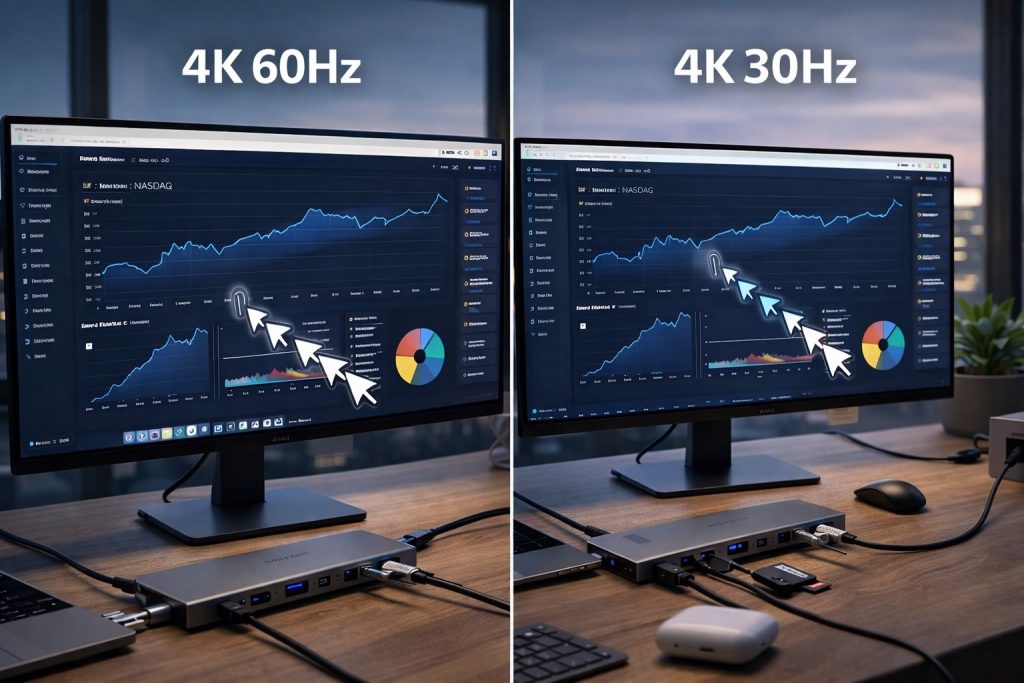
- 4K at 30Hz: looks fine for static content, feels laggy for cursor movement
- 4K at 60Hz: smooth, ideal for productivity
- 1440p at 144Hz: great for gaming
- 8K at 30Hz: mostly marketing for most users
If you’re pairing your hub with one of the best gaming monitors in 2025, refresh rate support is critical. A basic USB-C multiport adapter might technically output 4K, but only at 30Hz. That’s not a premium experience.
Fourth: bandwidth limitations are real
A standard USB-C hub shares bandwidth between:
- Video output
- USB-A devices
- Ethernet
- SD card readers
So if you plug in:
- Two 4K monitors
- A fast external SSD
- Gigabit Ethernet
- Multiple USB devices
A cheaper hub may struggle.
This is where a true Thunderbolt 4 dock shines. It has enough bandwidth headroom to handle heavy multitasking without throttling performance.
If your workflow includes video editing, AI tools, or heavy multitasking similar to setups used for AI productivity apps, you’ll benefit from the extra bandwidth.
What most people actually need
For 80 percent of users in the US, UK, Canada, and Australia:
- Dual 4K at 60Hz support
- Thunderbolt 4 or USB4
- Clear confirmation of macOS compatibility
- Dedicated DisplayPort plus HDMI (not two HDMI sharing bandwidth)
Ignore the “8K ready” badge unless you actually own an 8K display.
Thunderbolt vs standard USB-C: Do you really need a Thunderbolt 4 dock?
This is where things get spicy.
At first glance, a standard USB-C hub and a Thunderbolt 4 dock appear nearly identical. Same compact metal box. Same HDMI ports. Same Ethernet. Same “one cable to rule them all” promise.
But under the hood? Completely different highways.
Bandwidth: the invisible bottleneck
Standard USB-C hubs typically run at:
- 5Gbps or 10Gbps for USB 3.2
- Shared bandwidth across ports
Thunderbolt 4 docks run at:
- 40Gbps total bandwidth
- Dedicated display pipelines
- Higher PCIe data allocation for storage and accessories
Think of standard USB-C like a busy two-lane road. It works fine for daily commuting. Thunderbolt 4 is a multi-lane motorway with room for trucks, sports cars, and the occasional tech nerd hauling three SSDs.
If you’re:
- Running dual 4K monitors
- Using high-speed external NVMe storage
- Connecting 2.5Gb or 10Gb Ethernet
- Powering multiple USB devices
Then a Thunderbolt 4 dock prevents traffic jams.
If you’re just plugging in a mouse, an HDMI monitor, and an SD card? A good USB-C multiport adapter will do the job beautifully.
Stability and future-proofing
Thunderbolt 4 has stricter certification standards. That means:
- Guaranteed 40Gbps
- Mandatory support for dual 4K displays
- Wake-from-sleep reliability
- More consistent performance
Cheaper hubs sometimes:
- Drop Ethernet randomly
- Flicker displays under heavy load
- Struggle with macOS updates
Not all do, but quality variance is real.
Do Mac users benefit more?
Yes, often.
MacBooks, especially recent Pro models, fully leverage Thunderbolt bandwidth. If you’re investing in a premium laptop, pairing it with a basic hub can feel like putting economy tires on a sports car.
For a MacBook USB-C dock scenario, Thunderbolt 4 offers:
- Cleaner dual monitor support
- Better compatibility
- More stable power delivery
However, if you’re using a lightweight MacBook Air and only need one external display, spending on a full Thunderbolt 4 dock might be overkill.
Who actually needs Thunderbolt 4?
You probably need it if:
- You work with video editing or large media files
- You use AI development tools and heavy compute workflows
- You want guaranteed dual 4K 60Hz
- You hate troubleshooting
You probably don’t need it if:
- You use one 1080p monitor
- You mainly browse, email, and stream
- You just want extra USB ports
In other words, match the dock to your workflow, not your ego.

Ports that actually matter: stop chasing quantity, start choosing wisely
If you’ve ever compared two hubs and thought, “This one has 12 ports, so it must be better,” you’re not alone.
However, more ports do not automatically translate into better performance. In fact, the wrong combination of ports can quietly sabotage your setup.
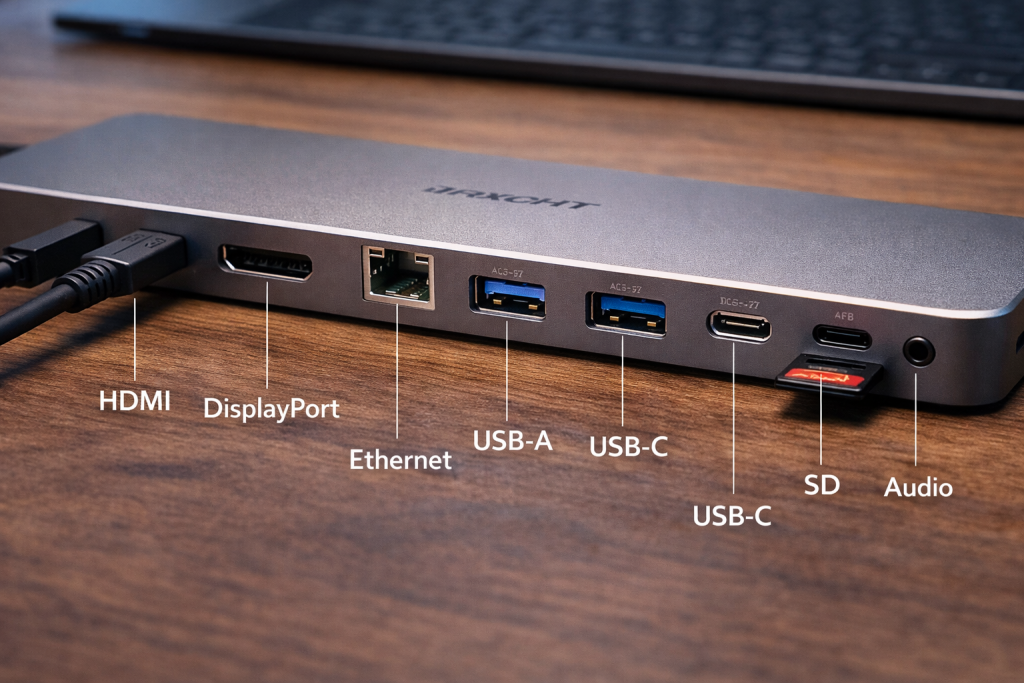
Let’s break down what actually matters when choosing a USB-C docking station or USB-C multiport adapter.
HDMI vs DisplayPort: which should you prioritize?
Both do the same job in principle, but there are subtle differences.
HDMI is:
- More common on TVs and consumer monitors
- Convenient and widely compatible
- Sometimes limited in refresh rate, depending on the version
DisplayPort is:
- More common on productivity and high-end monitors
- Better for higher refresh rates
- Often more reliable for dual monitor daisy chaining
For gamers or high refresh rate users, always check:
- HDMI 2.0 vs HDMI 2.1
- DisplayPort 1.2 vs 1.4
Those tiny version numbers make a massive difference.
Ethernet: Do you actually need it?
Wi-Fi is convenient. Ethernet is stable.
If your work involves:
- Large file transfers
- Cloud backups
- AI model downloads
- Remote desktop sessions
Then a Gigabit Ethernet port on your USB-C hub laptop charger setup is worth it.
If you’ve read our tips for boosting your Wi-Fi speed at home, you know that wired still beats wireless when consistency matters.
A surprising number of slim hubs skip Ethernet to stay compact. That’s fine for travel, but not ideal for a permanent desk setup.
SD and microSD card readers: creators, this one’s for you
If you shoot video or photography, integrated SD card slots save time and dongle clutter.
Look for:
- UHS-I support at a minimum
- Clearly stated transfer speeds
Many low-cost hubs include SD card readers but limit their speeds. That matters when transferring large 4K footage.
If your workflow includes editing from external drives and memory cards, combine:
- Thunderbolt bandwidth
- Fast SD reader
- High-speed USB-A or USB-C data ports
That trio makes your workflow noticeably smoother.
USB-A vs USB-C ports: balance is key
Yes, the future is USB-C. However, the current version still supports USB-A.
Your keyboard, mouse, USB flash drive, webcam, microphone, and countless accessories probably still use USB-A.
A good balance looks like:
- 2 to 3 USB-A ports
- 1 to 2 additional USB-C data ports
Not all USB-C ports are equal, either. Some are:
- Data only
- Power only
- Display capable
- Full Thunderbolt
Manufacturers are not always crystal clear about this, so read the fine print.
Audio jack: underrated but useful
Some docks include a 3.5mm combo jack. If your laptop has removed the headphone jack, this suddenly becomes valuable.
It’s not glamorous, but neither is scrambling for a Bluetooth connection during an important meeting.
The smart way to choose ports
Instead of asking, “Which is the best USB-C hub?”
Ask:
- What devices do I plug in daily?
- How many displays do I use?
- Do I transfer large files often?
- Is this for travel or permanent desk use?
Then choose based on your actual usage pattern, not marketing bullet points.
Brand differences: Are Anker and Belkin USB-C hub models actually larger?
Let’s be honest. When you search for the best USB-C hub, two names consistently appear: Anker and Belkin.
Are they genuinely better, or are you just paying for brand comfort?
The short answer: you’re paying for consistency, not magic.
What you really get with premium brands
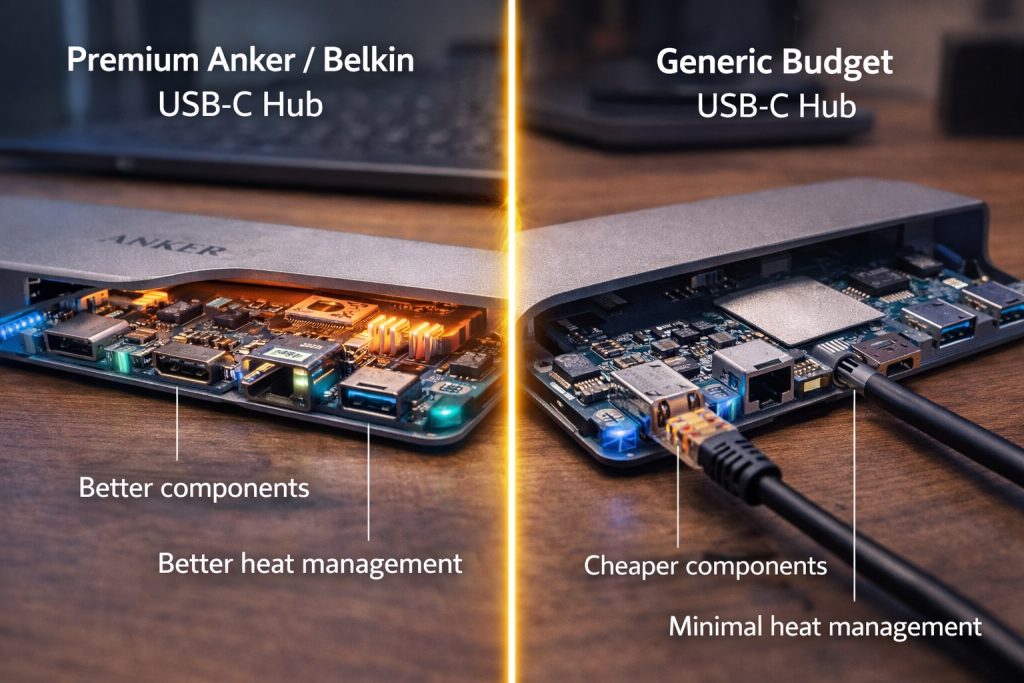
Brands like Anker and Belkin typically offer:
- Better thermal management
- More stable power delivery
- Higher quality internal controllers
- Cleaner firmware updates
- More reliable customer support
With cheaper, no-name hubs, the issues aren’t always obvious on day one. Problems often appear after months of use:
- Random disconnects
- Ethernet dropping under load
- Displays flickering
- Overheating during extended sessions
If your USB-C docking station is powering your entire desk, reliability matters more than saving $25.
Build quality and heat management
Heat is the silent killer of hubs.
When you run:
- Dual 4K monitors
- 100W charging
- Multiple USB devices
You’re pushing serious power and data through a small aluminum box.
Better brands use:
- Higher-grade internal components
- Improved shielding
- More effective heat dissipation
That’s especially important for a Thunderbolt 4 dock, which supports much higher bandwidth than a standard USB-C multiport adapter.
Cheap hubs may appear identical externally, but internally, they may cut corners on controllers and capacitors.
Firmware and compatibility updates
This is rarely discussed.
macOS and Windows updates occasionally affect how docks behave. Established brands are more likely to:
- Release firmware fixes
- Maintain compatibility documentation
- Clearly state supported devices
If you’re using a MacBook USB-C dock setup long term, this matters more than you think.
When cheaper hubs are perfectly fine
You don’t always need premium.
If your usage looks like this:
- One external monitor
- Keyboard and mouse
- Occasional USB drive
- Moderate charging
A mid-range hub from a reputable brand is sufficient.
Not everyone needs a $300 thunderbolt 4 dock. Sometimes, a compact USB-C hub laptop charger combo is the right solution.
Smart buying strategy
Instead of chasing the most expensive option, do this:
- Match specs to your workflow.
- Check verified user reviews for long-term reliability.
- Confirm power delivery matches your laptop’s requirements.
- Prioritize Thunderbolt only if your workflow demands it.
That approach will save you from both under-buying and overspending.
If you want to avoid common overspending mistakes, the same logic applies to other tech categories too. We’ve seen similar patterns in tech-buying mistakes that quietly drain your wallet.
Travel hub vs. full desktop docking station: which one best fits your workflow?
This is where things get practical.
Not everyone needs a massive Thunderbolt 4 dock sitting permanently on their desk. And not everyone should rely on a tiny USB-C multiport adapter dangling from their laptop like a stressed-out octopus.
Let’s break it down clearly.
Travel USB-C hub: lightweight and flexible
A travel-friendly USB-C hub is:
- Compact
- Bus-powered, no extra power brick
- Easy to toss into a backpack
- Usually supports one external display
Perfect for:
- Students
- Coffee shop workers
- Digital nomads
- Minimalist laptop users
If you’re carrying one of the best lightweight laptops for travel or a slim ultrabook, a compact hub with:
- HDMI
- Two USB-A ports
- One USB-C passthrough
- Optional SD card reader
…is usually more than enough.
The trade-offs:
- Shared bandwidth
- Limited dual monitor support
- Lower maximum power delivery
- Often no Ethernet
But for mobility, they’re ideal.
Full desktop USB-C docking station: the command center
A full USB-C docking station or Thunderbolt 4 dock is designed to stay on your desk.
It usually includes:
- 85W to 100W plus power delivery
- Dual 4K display support
- Gigabit Ethernet
- Multiple USB-A and USB-C ports
- Audio output
- External power supply
This type of setup shines in:
- Remote work environments
- Creative studios
- Developer desks
- Dual monitor productivity setups
If your workspace looks anything like the setups featured in the best work-from-home setups for 2026, a properly powered dock makes life dramatically easier.
The real magic is simplicity.
One cable into your laptop and instantly you get:
- Charging
- Dual monitors
- Keyboard and mouse
- Ethernet
- External drives
- Webcam and audio
That seamless experience is what separates a basic hub from a true workstation dock.
The hidden difference: cable clutter
A small USB-C multiport adapter works beautifully for light setups.
But once you add:
- Two monitors
- External SSD
- Ethernet
- Webcam
- Microphone
- Phone charging
A compact hub can quickly turn into cable chaos.
A desktop dock centralizes everything and keeps your desk clean, especially if you care about ergonomic or minimalist workspace design.
Quick decision rule
Choose a travel hub if:
- You move around frequently
- You use one monitor
- You prioritize portability
- Your laptop draws under 65W
Choose a full dock if:
- You work at a fixed desk daily
- You use dual monitors
- You transfer large files
- You want a one-cable solution
- You need a reliable Ethernet
It’s not about which is “best.”
It’s about which fits your real workflow.
Common USB-C hub buying mistakes to avoid
Even smart buyers get tripped up here.
Here are the mistakes that quietly ruin otherwise good setups.
1. Ignoring power delivery limits
Buying a 60W hub for a 96W laptop and wondering why the battery drains under load.
Always match wattage.
2. Assuming all USB-C ports support video
Not all USB-C ports support DisplayPort Alt Mode. Some are data-only.
If your laptop doesn’t support video output over USB-C, no hub will magically fix that.
3. Falling for “8K ready” marketing
Unless you actually own an 8K monitor, dual 4K at 60Hz is the practical benchmark.
Ignore flashy badges.
4. Overbuying Thunderbolt
Not everyone needs a Thunderbolt 4 dock. If you use only one 1080p monitor and a mouse, a mid-range USB-C hub/laptop charger combo is sufficient.
5. Forgetting about macOS display limitations
MacBooks without full Thunderbolt support may not extend dual monitors without DisplayLink.
Always confirm compatibility before purchasing a USB-C hub for a MacBook.
The ultimate USB-C hub and dock spec checklist
Before you click buy, confirm these:
- Laptop charging requirement in watts
- Required number of monitors
- Required resolution and refresh rate
- Thunderbolt or standard USB-C support
- Is Ethernet needed or not
- Number of USB-A and USB-C devices
- SD card reader required
- Travel or permanent desk use
If a hub ticks all those boxes, you’re good.
If it doesn’t, keep shopping.
FAQs: USB-C hubs and docking stations explained
What is the difference between a USB-C hub and a USB-C docking station?
A USB-C hub is typically compact and bus-powered, designed for portability and light expansion. A USB-C docking station is usually powered, supports higher bandwidth, dual monitors, and is intended for permanent desk setups.
Do I need a Thunderbolt 4 dock for dual monitors?
Not always. Some USB-C hubs support dual monitors on Windows via DisplayPort MST. However, a Thunderbolt 4 dock guarantees dual 4K 60Hz support and better stability, especially for Mac users.
Can a USB-C hub charge my laptop?
Yes, if it supports power delivery passthrough. Always check the maximum supported wattage and ensure it matches your laptop’s charging requirements.
Why does my USB-C hub only mirror displays on Mac?
Some MacBooks without full Thunderbolt support do not natively support dual extended displays via standard USB-C. In those cases, you need a Thunderbolt dock or a DisplayLink-enabled solution.
Is a more expensive USB-C dock always better?
Not necessarily. The best USB-C dock for you depends on your workflow. If you use only one monitor and basic peripherals, a mid-range hub is often sufficient.
