

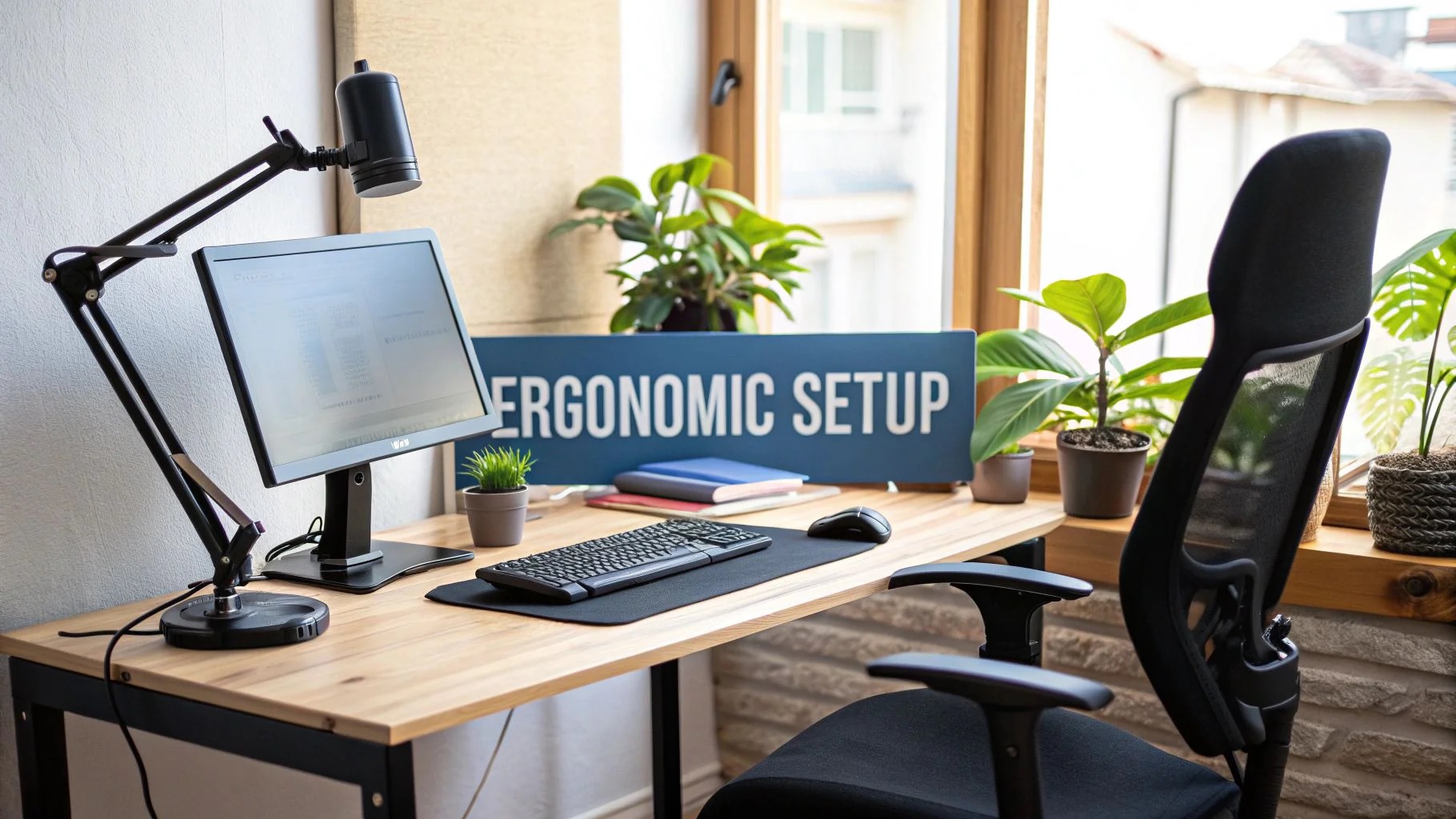
Why ergonomic desk setups actually matter
Ergonomic desk setups explained sounds like something only office managers worry about, but if you work from home, it matters more than ever. Kitchen tables, couches, and poorly sized desks may feel convenient at first, but over time they quietly turn into posture villains. Neck strain, shoulder tension, wrist pain, and work from home back pain usually don’t appear overnight, they build slowly, like a bad subscription you forgot to cancel.
A proper ergonomic setup is not about expensive gear or turning your home into a Silicon Valley startup office. It’s about adjusting your workspace to match how your body naturally moves and rests. When done right, an ergonomic desk setup helps reduce fatigue, improves focus, and makes long workdays feel less punishing.
In this guide, we’ll break down ergonomic desk setups step by step. From choosing the right desk and chair, to monitor height, keyboard placement, and smart accessories, you’ll learn how to create a setup that works with your body instead of against it. Think of this as comfort engineering for your spine, wrists, and productivity.
What makes a desk setup truly ergonomic
Ergonomic desk setups explained in simple terms come down to one idea: your desk should adapt to you, not the other way around. A lot of people assume ergonomics means buying a fancy chair and calling it a day. In reality, it’s about how every part of your setup works together to support neutral posture and natural movement.
A truly ergonomic desk setup focuses on alignment, adjustability, and comfort over long periods. When these elements are off, your body compensates in small but harmful ways, slouching forward, craning the neck, or resting weight unevenly. Over time, those small adjustments turn into aches, stiffness, and chronic pain.
Here are the core principles behind an ergonomic setup.
Neutral posture is the foundation
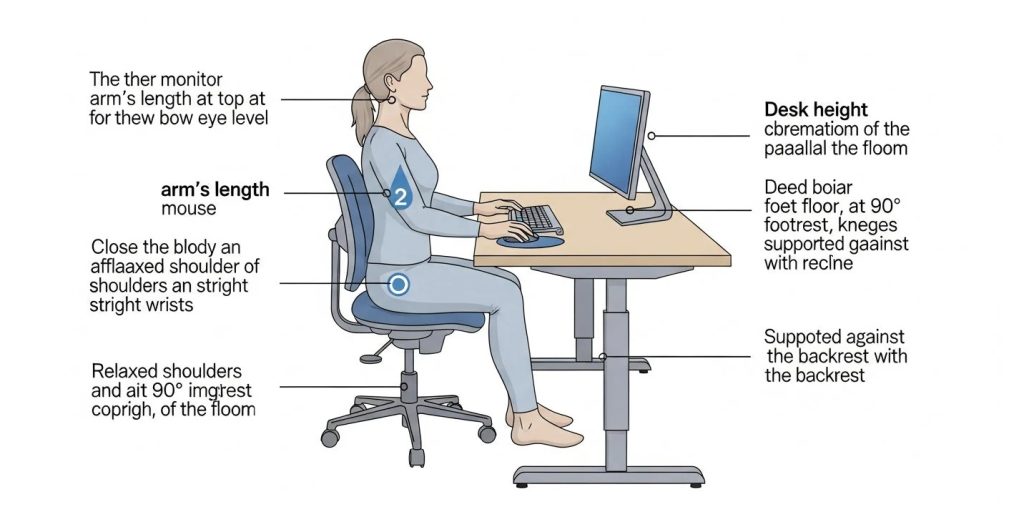
Neutral posture means your body is positioned in a way that puts the least stress on joints and muscles. In an ergonomic desk setup, this usually looks like:
- Head level, not jutting forward toward the screen
- Shoulders relaxed, not hunched up near your ears
- Elbows close to your body and bent around 90 degrees
- Wrists straight while typing or using a mouse
- Feet flat on the floor or supported
If your desk forces you out of these positions, it’s not ergonomic, no matter how stylish it looks on Instagram.
Adjustability beats perfection
No single desk or chair works for everyone. Height, leg length, arm reach, and even typing habits vary from person to person. That’s why adjustability matters more than brand names or aesthetics.
An adjustable standing desk, a chair with multiple height settings, or even a simple footrest under the desk can make a huge difference. These allow you to fine tune your setup as your body changes throughout the day. And yes, your posture at 9 a.m. is very different from your posture at 4 p.m.
Movement matters more than sitting perfectly
One of the biggest ergonomic myths is that there’s one perfect sitting position you should hold all day. In reality, staying still for hours is just as bad as sitting poorly.
The best ergonomic desk setups encourage small movements. Shifting positions, standing for short periods, adjusting chair height, or changing foot placement helps reduce muscle fatigue. This is where standing desk benefits really shine, not because standing is better than sitting, but because switching between both is healthier.
Comfort supports productivity
If your setup feels uncomfortable, you’ll subconsciously fight it all day. You’ll lean forward, cross your legs awkwardly, or rest your wrists in strained positions. An ergonomic setup should feel almost invisible, like it disappears once you start working.
Comfort doesn’t mean soft or plush. It means supportive, balanced, and stable. When comfort is right, focus improves and your energy lasts longer, even during long work from home days.
Choosing the right desk, sitting vs standing and how to decide
When ergonomic desk setups explained start getting real, the desk itself becomes the centerpiece. Your desk sets the tone for posture, movement, and comfort throughout the day. Choosing between a traditional desk and an adjustable standing desk isn’t about trends, it’s about how your body feels after hours of work.
Sitting desks, still useful when set up correctly
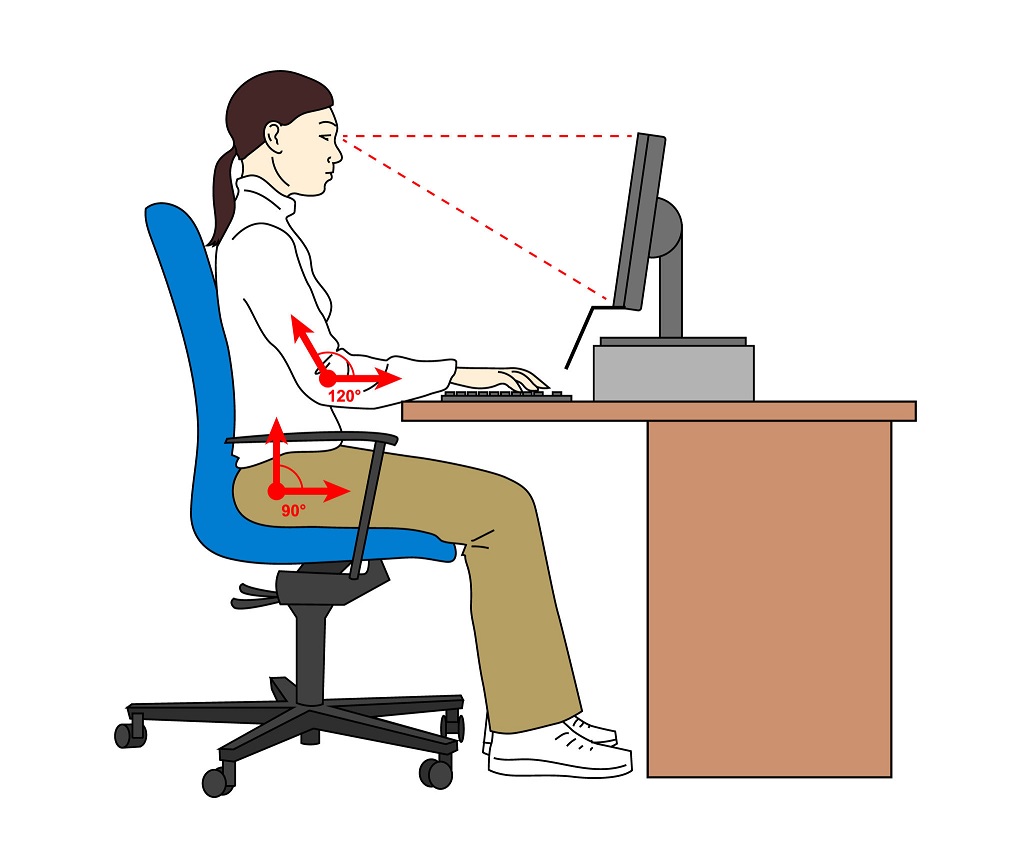
A standard sitting desk can still be ergonomic if the height is right and paired with a good chair. The key is making sure your elbows rest at roughly desk height when your shoulders are relaxed. If the desk is too high, shoulders creep upward. Too low, and you end up slouching forward.
Sitting desks work well for tasks that require precision, like writing, coding, or detailed design work. The downside is long static sitting, which is why many people start exploring standing desk options once discomfort kicks in.
Adjustable standing desks, flexibility wins
An adjustable standing desk allows you to switch between sitting and standing without rearranging your entire workspace. This flexibility is the main reason they’ve become popular in home offices.
Standing desk benefits include reduced lower back pressure, better circulation, and more opportunities for movement. Standing naturally encourages small shifts in weight and posture, which helps prevent stiffness. It’s not about standing all day, it’s about changing positions regularly.
When choosing from the best standing desks, look for smooth height adjustment, stable construction, and enough surface area for your monitor, keyboard, and accessories. Electric models are more convenient, but manual ones can still work well if adjusted often.
How to set up standing desk height correctly
One of the most common mistakes people make is setting their standing desk too high. When standing, your elbows should still sit around a 90 degree angle, just like when seated. The screen should be at eye level so you’re not looking down or craning your neck.
If you’re new to standing desks, start slow. Alternate between sitting and standing every 30 to 60 minutes. Your legs and feet need time to adapt, especially if you’re used to sitting all day.
Desk size and layout matter too
No matter which desk style you choose, surface space matters. A cramped desk forces awkward arm positions and poor monitor placement. Think about how much room you need for:
- Monitor or laptop setup
- Keyboard and mouse space
- Writing or note taking
- Accessories like a lamp or footrest
For smaller spaces, smart home office desk ideas like compact standing desks or wall facing layouts can still be ergonomic if everything is positioned correctly.
The ergonomic office chair, your spine’s best friend or worst enemy
If ergonomic desk setups explained had a main character, it would be the ergonomic office chair. You can have the best desk in the world, but if your chair is wrong, your posture and back will suffer quietly and consistently.
A good chair doesn’t force you to sit perfectly still. It supports your body while allowing small movements, which is exactly what your spine likes.
What actually makes a chair ergonomic
An ergonomic office chair is defined less by how it looks and more by how well it adjusts to you. The most important features include:
- Seat height adjustment so your feet rest flat on the floor
- Lumbar support that follows the natural curve of your lower back
- Backrest tilt to support slight reclining
- Armrests that don’t push your shoulders upward
If a chair locks you into one position or feels comfortable only for the first 20 minutes, it’s not doing its job.
Ergonomic desk chair height, getting it right
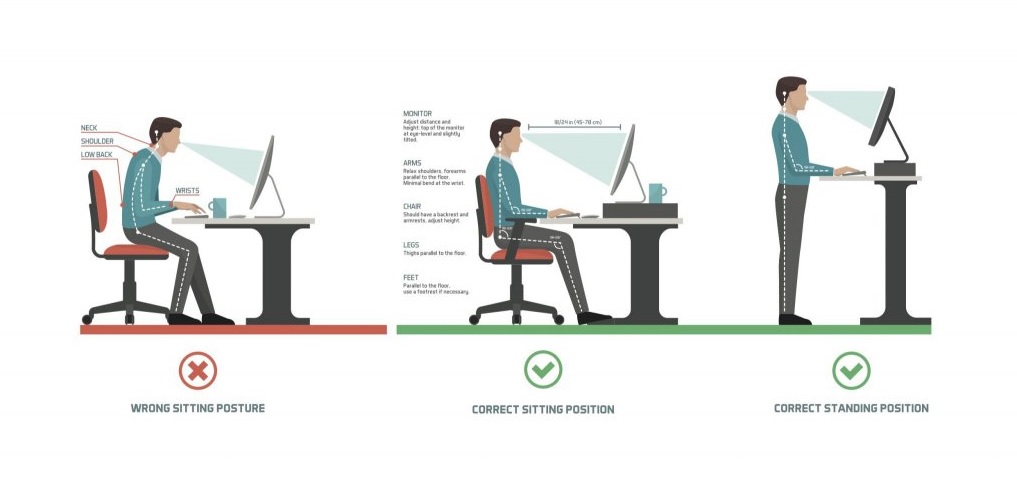
Chair height is one of the most overlooked details, yet it affects everything from hip alignment to shoulder tension. The correct ergonomic desk chair height allows your thighs to sit parallel to the floor, with knees at roughly hip level or slightly lower.
When seated, your elbows should align comfortably with your desk surface without lifting your shoulders. If you’re constantly raising or lowering your chair during the day, your desk height may also need adjustment.
Lumbar support, the difference your back notices
Lower back pain is a common complaint among remote workers. Proper lumbar support helps maintain the natural inward curve of your spine. Without it, your lower back collapses backward, leading to slouching and discomfort.
Some chairs have built in lumbar support, while others use adjustable pads. If your chair lacks support, even a small cushion or rolled towel can help in the short term.
Armrests, helpful or harmful
Armrests are useful only if they’re set correctly. They should support your arms lightly without pushing your shoulders upward or forcing your elbows outward. If your armrests prevent you from sitting close to your desk, they may do more harm than good.
In some setups, especially smaller desks, lowering or removing armrests can actually improve posture.
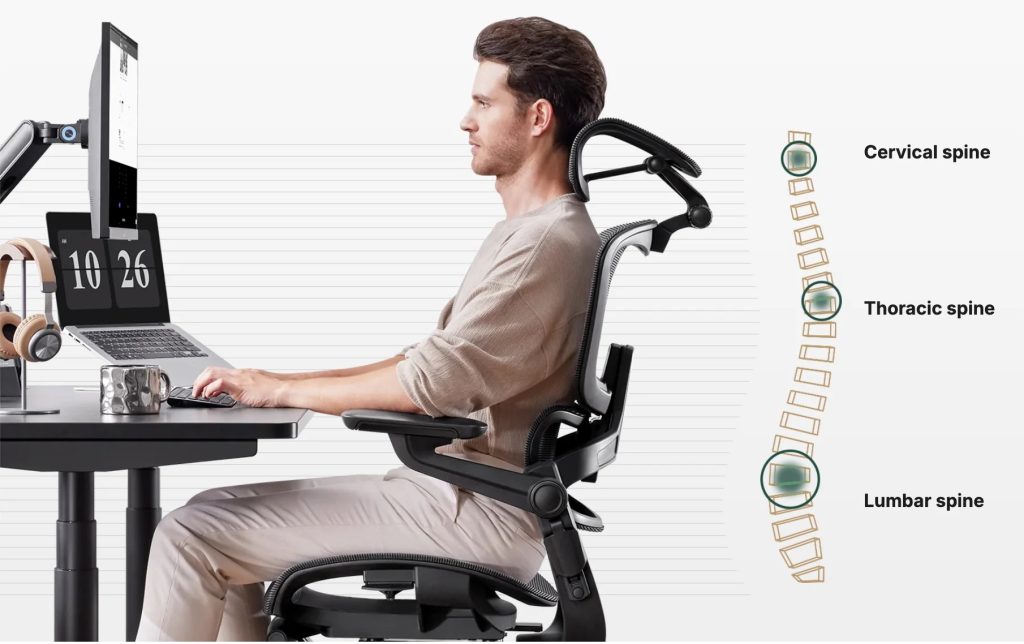
Monitor and laptop positioning, save your neck and eyes
When ergonomic desk setups explained go wrong, the monitor is often the culprit. Screens that are too low, too high, or off to the side quietly pull your head forward or twist your neck. Over time, this leads to stiffness, headaches, and upper back pain.
Getting your screen positioning right is one of the fastest ways to improve comfort.
Ideal monitor height and distance
Your monitor should sit directly in front of you, not angled to the side. The top of the screen should be roughly at eye level, allowing your eyes to look slightly downward toward the center of the display. This keeps your neck in a neutral position.
Distance matters too. A good rule is an arm’s length away. If you’re leaning forward to read text, your screen is either too far away or your font size is too small.
Laptop ergonomic setup at home
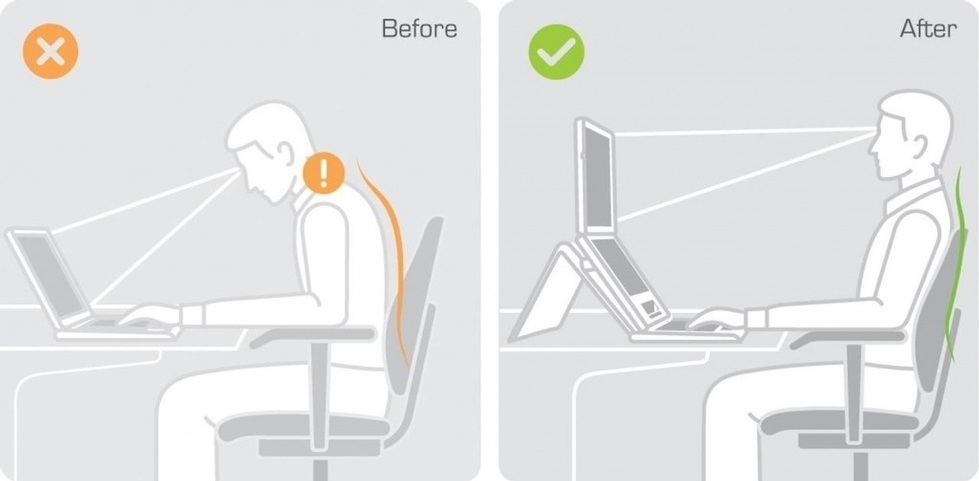
Laptops are convenient, but they’re not designed for long hours of desk work on their own. The biggest issue is that the screen and keyboard are fixed together. When the screen is at the right height, the keyboard is too high, and when the keyboard is comfortable, the screen is too low.
For a proper laptop ergonomic setup home users should consider:
- Raising the laptop on a stand or books
- Using an external keyboard and mouse
- Aligning the screen at eye level
This small change alone can dramatically reduce neck and shoulder tension.
Multiple screens and alignment
If you use two monitors, place the primary screen directly in front of you and the secondary one slightly to the side. If both are used equally, position them symmetrically and angle them inward slightly. Avoid constant neck rotation throughout the day, your muscles will thank you later.
Lighting and glare control
Poor lighting causes eye strain, which often leads to leaning forward unconsciously. Position your monitor perpendicular to windows to reduce glare, and use soft ambient lighting rather than harsh overhead lights. A simple desk lamp can make a bigger difference than most people expect.
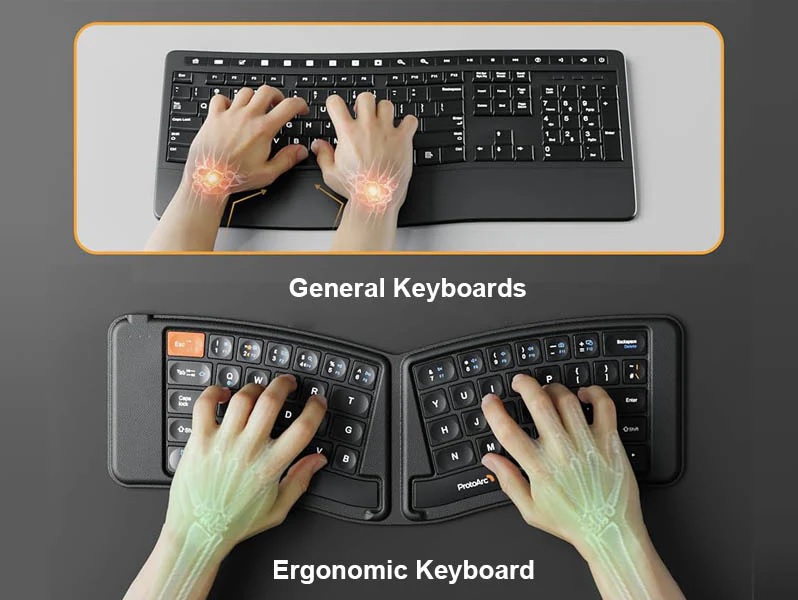
Keyboard, mouse, and wrist alignment, small tweaks that prevent big pain
When ergonomic desk setups explained skip the hands and wrists, discomfort usually shows up fast. Tingling fingers, sore forearms, and tight shoulders often start with poor keyboard and mouse placement. These are small details, but they have a huge impact over long workdays.
Proper keyboard positioning
Your keyboard should sit close enough that your elbows stay near your body. When typing, forearms should be roughly parallel to the floor, with wrists in a neutral, straight position. If your wrists bend upward or downward while typing, the keyboard is either too high or too low.
Avoid resting your wrists heavily on the desk while typing. Instead, let your arms float slightly, using your chair and posture for support.
Mouse placement and movement
The mouse should be positioned right next to the keyboard, not far off to the side. Reaching repeatedly strains the shoulder and upper arm over time. Keep mouse movements relaxed and use your whole arm rather than flicking only the wrist.
If your mouse feels too low compared to the keyboard, a desk mat or mouse pad with subtle height can help balance the surface.
Keyboard tray installation, when and why it helps
A keyboard tray can be helpful if your desk height is too high to allow proper arm alignment. Keyboard tray installation allows the keyboard and mouse to sit lower, keeping elbows at a comfortable angle without raising your chair too much.
However, trays are not automatically ergonomic. Poorly installed trays that force the mouse too far away or limit leg space can cause more problems than they solve. If you use one, make sure it slides smoothly and allows enough width for both keyboard and mouse.
Wrist rests, helpful but often misunderstood
Wrist rests are meant for resting between typing, not during constant movement. If used incorrectly, they can encourage pressure on the wrists. Choose soft, low profile rests and use them lightly, not as a permanent support while typing.
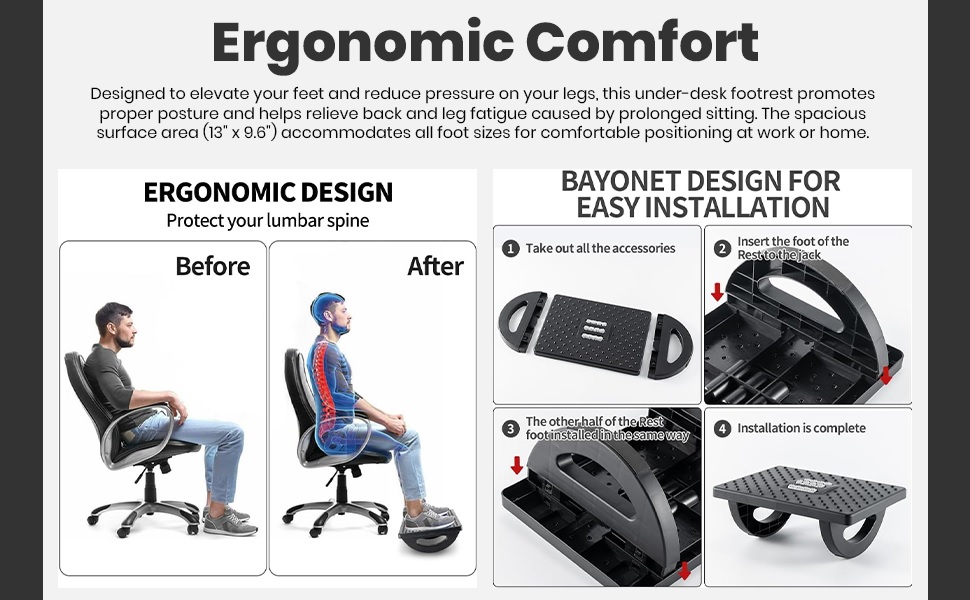
Foot positioning and smart accessories that complete the setup
When ergonomic desk setups are explained to focus only on desks and chairs, foot positioning often gets ignored. Yet your lower body plays a huge role in posture, circulation, and overall comfort. If your feet are dangling, tucked under your chair, or unevenly supported, your spine will compensate in all the wrong ways.
Why foot support matters
Proper foot support stabilizes your entire sitting posture. When your feet are flat and supported, your hips stay level, your lower back maintains its natural curve, and your upper body can relax. Without that support, pressure builds in the lower back and thighs, often contributing to work from home back pain.
When to use a footrest under desk
A footrest under desk is especially useful if your chair height is adjusted higher to match desk or keyboard height. In this situation, your feet may not rest flat on the floor anymore.
A footrest helps by:
- Supporting your feet without locking your legs
- Reducing pressure behind the knees
- Encouraging subtle movement throughout the day
Look for one with a slight angle or rocking function to keep circulation active.
Standing desk accessories for comfort
If you use a standing desk regularly, standing on a hard floor all day can strain your feet and knees. An anti fatigue mat provides cushioning and encourages small leg movements, which reduces fatigue during longer standing sessions.
Switching foot positions occasionally while standing also helps. A small foot bar or box can give one foot a rest at a time, keeping posture balanced.
Other accessories that quietly help
Sometimes the smallest additions make the biggest difference:
- Monitor arms for easy screen height adjustment
- Cable management to keep leg space clear
- Desk lamps positioned to reduce eye strain
These accessories don’t scream ergonomics, but they support a cleaner, more flexible workspace that adapts to you.
Smart ergonomic desk setups, style, mistakes to avoid, and long term comfort habits
At this stage of ergonomic desk setups explained, you already know the building blocks. Now it’s about making everything work together, look good, and stay comfortable long term. A great setup isn’t just assembled once and forgotten, it evolves with your habits, space, and body.
Home office desk ideas that balance comfort and style
An ergonomic workspace doesn’t have to look clinical or boring. In fact, a visually pleasing setup often encourages better posture because you enjoy using it.
Some practical home office desk ideas that still support ergonomics include:
- Minimalist desks with adjustable height and clean cable management
- Wall facing desks to reduce distractions and improve screen focus
- Corner desks that allow wider arm movement and better monitor spacing
- Floating shelves instead of bulky drawers to keep leg space open
Plants, warm lighting, and neutral colors help reduce eye fatigue and mental stress. Just make sure the décor doesn’t force awkward monitor or keyboard placement. Style should support function, not fight it.
Common ergonomic mistakes that cause work from home back pain
Even with good equipment, small mistakes can undo everything. Many people experience work from home back pain not because of bad furniture, but because of poor setup habits.
The most common issues include:
- Sitting too far forward without back support
- Desk height that forces raised shoulders
- Screens placed too low, causing neck strain
- Standing desks used all day without breaks
- Ignoring foot support while seated
Another big mistake is assuming discomfort is normal. If something hurts consistently, your setup needs adjusting. Pain is feedback, not a requirement of productivity.
How to fine tune your setup over time
Your body doesn’t stay the same throughout the day or year, so your setup shouldn’t either. Ergonomics works best when treated as an ongoing process.
Helpful habits to build:
- Recheck chair and desk height every few weeks
- Alternate sitting and standing positions regularly
- Take short movement breaks every 30 to 60 minutes
- Stretch shoulders, hips, and wrists lightly during the day
Pay attention to where tension builds first. That’s usually the signal telling you what needs adjustment next. Over time, these small refinements create a workspace that feels effortless to use.
The goal, comfort without thinking about it
The best ergonomic desk setups disappear once you start working. You’re not constantly shifting, leaning, or adjusting because your body feels supported. When comfort becomes automatic, focus improves and energy lasts longer.
Ergonomics isn’t about perfection. It’s about progress, awareness, and listening to your body before pain forces you to.
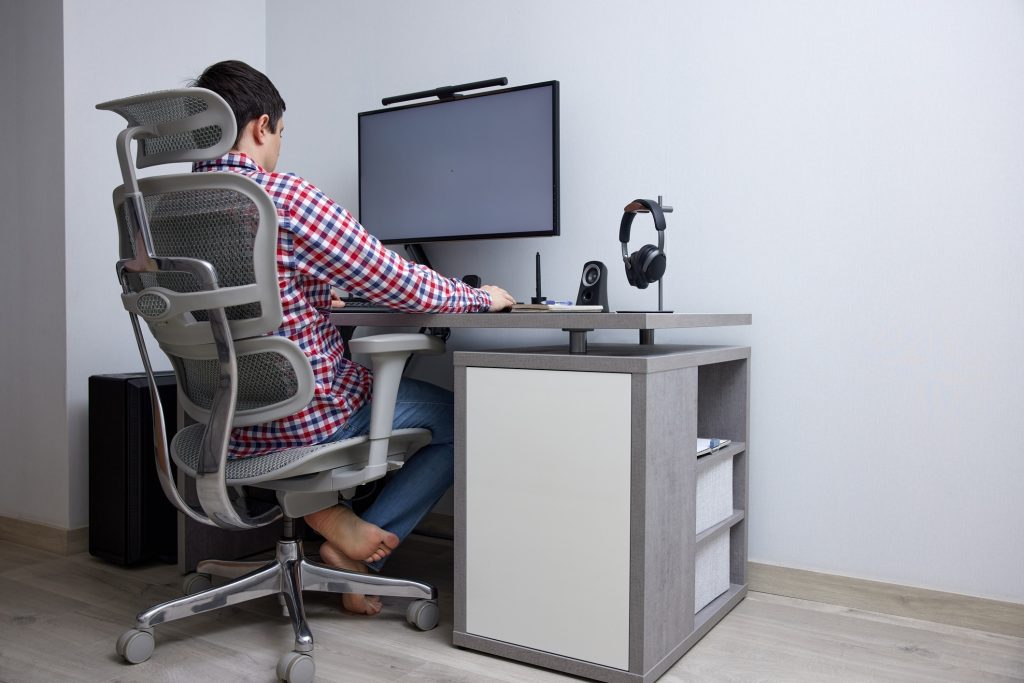
Conclusion – building an ergonomic desk setup that actually lasts
Ergonomic desk setups explained properly aren’t about chasing perfection or buying the most expensive gear. They’re about understanding how your body works and shaping your workspace to support it.
A good setup starts with the basics, desk height, chair support, and screen position. From there, details like keyboard alignment, foot support, and movement habits quietly make a big difference. The goal isn’t to sit or stand perfectly all day, but to stay comfortable enough that your body doesn’t fight your work.
If there’s one takeaway, it’s this: discomfort is not normal. When something feels off, adjust it. Ergonomics is a living setup, not a one time project. With small tweaks and awareness, your desk can become a place where productivity feels natural and pain stops being part of the job.
Frequently asked questions about ergonomic desk setups
What is an ergonomic desk setup?
An ergonomic desk setup supports neutral posture by aligning your desk, chair, screen, and keyboard to reduce strain on the back, neck, and wrists during work.
Are standing desks good for working from home?
Standing desks are useful because they allow switching between sitting and standing. The main benefit comes from movement, not standing all day.
How high should an ergonomic office chair be?
Chair height should allow feet flat on the floor, thighs parallel to the ground, and elbows aligned with the desk without lifting the shoulders.
How can I make a laptop setup ergonomic at home?
Raise the laptop screen to eye level and use an external keyboard and mouse to maintain proper posture and reduce neck strain.
Why do I still have back pain with a desk chair?
Back pain often comes from sitting too long without movement, poor screen height, or lack of foot support, even with a good chair.
