

Remember the days when your phone’s battery easily lasted a full day, maybe two if you were lucky? Fast forward to 2025, and despite having smarter devices, many of us are still stuck watching our battery percentage drop faster than a Netflix episode countdown. Whether you’re team Android or iPhone, that dreaded low battery alert always seems to pop up at the worst time – usually when you’re far from a charger.
So, why is your phone battery draining so fast even with all the advanced tech of 2025? The answer isn’t always straightforward, but it usually boils down to a mix of hardware aging, background processes, power-hungry apps, and user habits. Thankfully, fixing these issues doesn’t require an engineering degree – just a few tweaks and smarter settings.
The modern battery problem
Smartphones today are mini computers with powerful processors, bright displays, and 5G connectivity. These features make your phone fast and capable, but they’re also notorious energy hogs. Even simple actions like checking messages or streaming short videos can drain your battery quicker than expected. Add in background app updates, push notifications, and constant location tracking, and you’ve got a recipe for a half-day battery at best.
Common culprits behind fast battery drain
Here are the top reasons your phone battery might be waving the white flag before lunchtime:
- Background apps running nonstop – Social media, messaging, and shopping apps are sneaky; they keep refreshing data even when you’re not using them.
- Overactive screen brightness – High-resolution OLED screens look great but consume serious power when cranked to max brightness.
- Outdated or buggy software – Sometimes, a poorly optimized app or system update is all it takes to send your battery life tumbling.
- Network and signal issues – When your phone struggles to maintain a signal, it uses more power to stay connected.
- Battery aging – Lithium-ion batteries naturally degrade over time, losing capacity with every charge cycle.
But don’t worry – you don’t need to live tethered to a power bank. In this guide, we’ll walk you through step-by-step ways to identify what’s draining your phone’s battery and how to fix it effectively in 2025.
Android battery saver tips and settings that actually work (2025)
If you’re an Android user wondering how to stop battery drain on your phone, you’re in luck. Android devices have come a long way when it comes to power management – but most users don’t take full advantage of the tools already built in. Whether you’re using a flagship like the Samsung Galaxy S24 Ultra or a mid-range Pixel, a few setting adjustments can make a world of difference.
1. Activate adaptive battery and battery saver modes
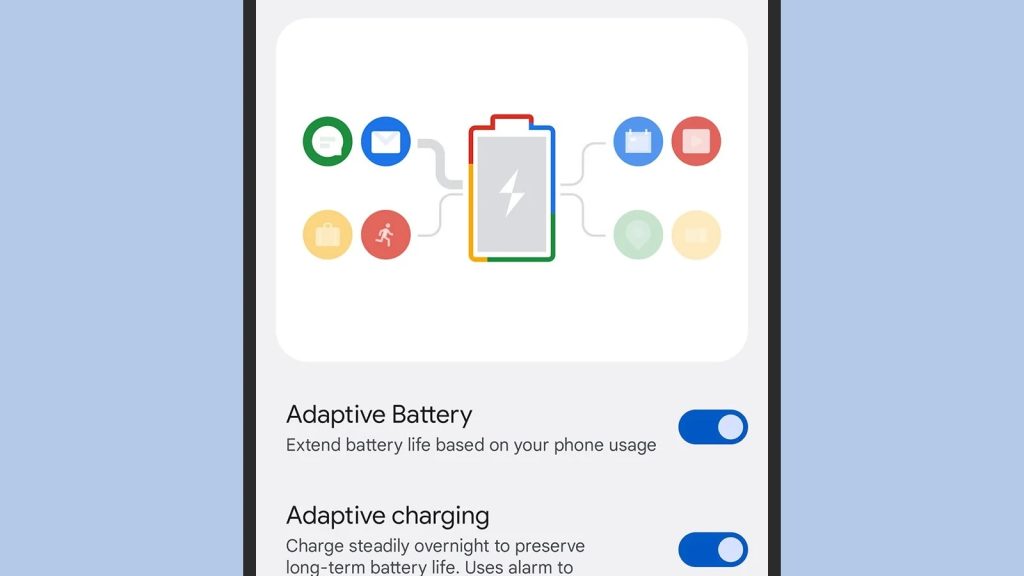
Android’s Adaptive Battery feature learns your usage patterns over time. It automatically limits background activity for apps you rarely open, ensuring your phone focuses energy where it’s actually needed. Pair this with Battery Saver mode, which reduces background data, limits performance, and slightly dims the display when your battery dips below a set percentage.
- Go to Settings → Battery → Adaptive Battery and toggle it on.
- For Battery Saver: Settings → Battery → Battery Saver → Schedule (choose “based on routine” for the best balance).
These modes might sound basic, but when fine-tuned, they can extend battery life by 15–25% daily.
2. Identify power-hungry apps
Your phone may be running a silent power thief – an app that’s always active, syncing data or pushing notifications. To find the culprits:
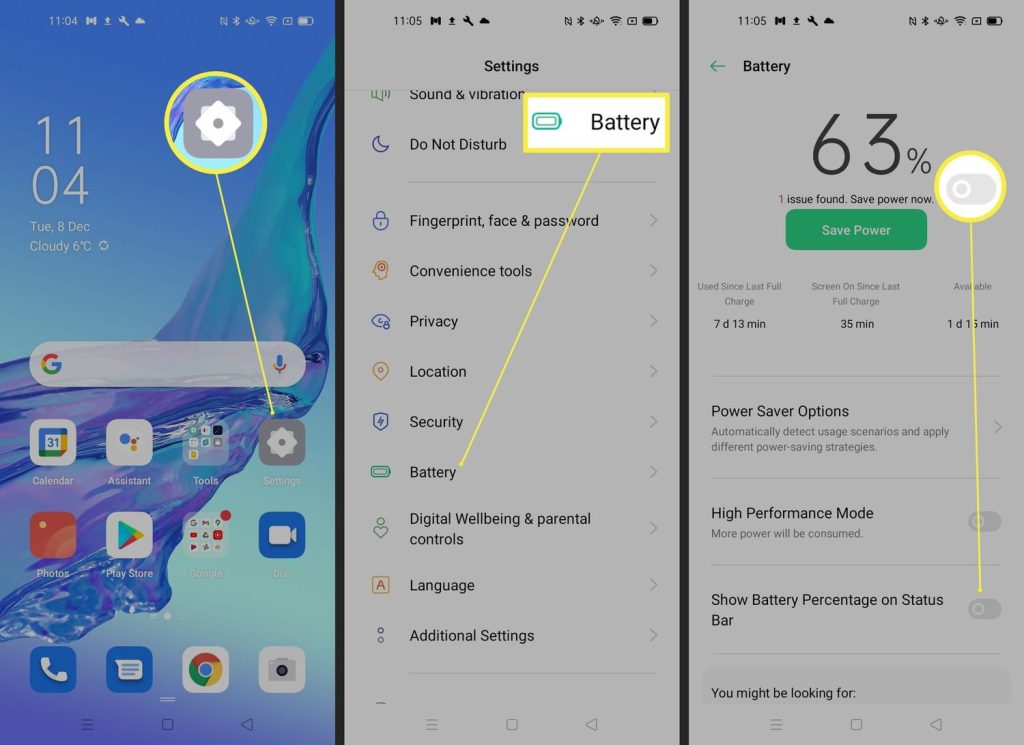
- Open Settings → Battery → Battery usage.
- Check which apps are consuming the most energy in the background.
Once identified, you can restrict background usage or uninstall unnecessary apps altogether. Apps like Facebook, TikTok, and Snapchat are known offenders – no surprise there.
3. Control location and Bluetooth usage
Having location services and Bluetooth constantly active can quietly drain your battery. In 2025, Android allows more control than ever:
- Set location access to “While using the app” instead of “Always.
- Turn off Bluetooth when not using accessories.
- Disable NFC unless you regularly use contactless payments.
These small tweaks can save hours of standby time daily.
4. Optimize your screen
Your display is the single biggest power consumer. Here’s how to tame it:
- Use dark mode – it’s stylish and reduces power consumption, especially on OLED screens.
- Lower the brightness or enable adaptive brightness.
- Reduce screen timeout to 30 seconds or less.
- Drop your refresh rate from 120Hz to 60Hz when you don’t need ultra-smooth scrolling.
5. Avoid extreme temperatures
Heat is a battery’s worst enemy. Leaving your phone in a hot car or under direct sunlight can damage the lithium-ion cells permanently, reducing long-term capacity. If your phone feels warm during charging, unplug it and let it cool before continuing.
6. Try trusted battery-saving apps
There are plenty of battery optimization apps that can help, but choose wisely. Avoid spammy apps that promise miracles. Instead, look for well-rated options like:
- Greenify (for managing background processes)
- AccuBattery (for monitoring battery health and charging habits)
- Device Care (built into Samsung phones for quick optimization)
When used responsibly, these apps can help you understand your phone’s battery behavior better – not just patch over the problem.
Battery drain fix and calibration tips for Android (2025)
Even after enabling every battery-saving feature imaginable, sometimes your phone still loses charge like it’s in a race to zero. That’s when a deeper fix – especially battery calibration – might be your secret weapon. In 2025, Android’s battery management is smarter than ever, but even smart systems can get confused over time.
What is battery calibration and why it matters
Every Android phone uses a small piece of software to estimate how much battery remains. This estimation isn’t always accurate, especially after months of heavy use or inconsistent charging habits. You might notice your phone shutting down at 15%, or jumping from 60% to 40% in seconds. That’s a telltale sign your battery stats need recalibration.
Calibration doesn’t magically restore battery health – it just re-syncs the software with the actual battery capacity, giving you a more accurate reading and smoother performance.
Steps to calibrate your Android battery (2025 method)
Here’s a safe and effective way to do it without any fancy tools:
- Fully discharge your phone – Use your phone until it powers off automatically.
- Leave it off for a few hours – Let the residual charge drain completely.
- Plug it in and charge uninterrupted – Charge it to 100% while it remains powered off.
- Turn it on and check levels – Once it reaches 100%, restart the phone and check the battery percentage.
- Let it settle – Use your phone normally for a few charge cycles. The system will readjust and display accurate percentages.
⚠️ Note: Don’t make a habit of draining your battery to zero frequently. Doing this too often can actually degrade the lithium-ion cells faster.
Clear cache and reset app preferences
If calibration alone doesn’t solve your issue, app-level glitches might be responsible. Corrupted caches can keep apps running in the background unnecessarily.
To fix this:
- Go to Settings → Storage → Cached data → Clear cache.
- For individual apps: Settings → Apps → [Select App] → Storage → Clear cache.
- Reset app preferences to restore default energy settings: Settings → Apps → Reset app preferences.
This often resolves sudden or unexplained battery drain – especially after a major Android update.
Update your system and apps
Outdated firmware or buggy apps can drain power like crazy. In 2025, Android updates often include behind-the-scenes battery optimizations, so keeping your software fresh matters more than ever.
- Go to Settings → System → System update.
- Update all apps through Google Play → Manage apps and device → Updates available.
Regular updates not only improve battery performance but also enhance security and overall stability.
When to replace your battery
Even the most optimized settings can’t save a physically deteriorated battery. If your phone is more than two years old and you’re charging it multiple times a day, it might be time to consider a replacement. Apps like AccuBattery can give you an estimate of your battery’s health percentage – if it’s below 80%, replacement is worth considering.
iPhone battery draining fast – solutions for iOS users (2025)
Even Apple’s finest devices aren’t immune to the dreaded battery drain. Whether you’ve got the iPhone 14, iPhone 15 Pro, or the latest iPhone SE 2025, seeing your battery percentage plummet faster than your morning coffee can be frustrating. The good news? iOS has evolved with several powerful battery optimization tools that can keep your phone running smoothly all day – if you know where to find them.
1. Check what’s eating your battery
Apple makes it easy to see which apps are sipping the most power.
Go to Settings → Battery and scroll down to the “Battery Usage by App” section. You’ll see a breakdown of which apps are consuming the most energy and whether that usage happened on screen or in the background.
If a social media app is hogging more than 10–15% of your total battery, it’s worth limiting background activity or even deleting and reinstalling it to reset power behavior.
2. Enable Low Power Mode
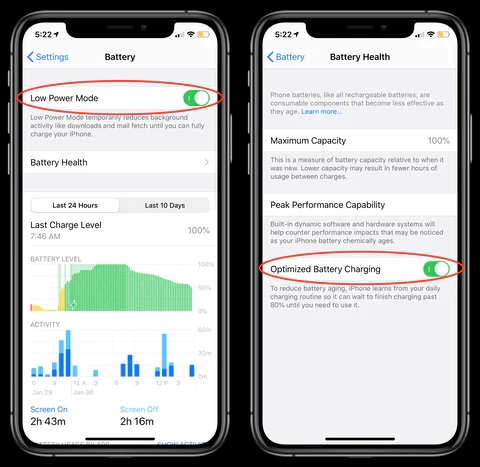
Low Power Mode is Apple’s built-in hero for quick battery recovery. Once activated, it reduces background processes, auto-downloads, and system animations – giving you those extra few crucial hours when your battery’s dipping low.
- Go to Settings → Battery → Low Power Mode
- Or just say, “Hey Siri, turn on Low Power Mode.”
This simple toggle can extend battery life by up to 25% without dramatically affecting performance.
3. Update to the latest iOS
Every new iOS update comes with under-the-hood battery optimizations. In 2025, iOS updates use AI-powered learning to manage charging patterns based on your daily routine.
- Go to Settings → General → Software Update.
If an update is available, install it while charging – it could resolve hidden battery bugs that drain your phone.
4. Manage background app refresh
Apple’s Background App Refresh feature is great for keeping your apps updated, but it’s also a quiet battery drainer.
Turn it off for apps that don’t need constant syncing:
- Go to Settings → General → Background App Refresh → Off or Wi-Fi only.
If you’re on the go all day, setting this to “Wi-Fi only” can save significant power.
5. Optimize screen and display settings
That bright Super Retina XDR display is gorgeous but power-hungry. Try these tweaks:
- Enable Auto-Brightness: Settings → Accessibility → Display & Text Size → Auto-Brightness.
- Turn on Dark Mode: Settings → Display & Brightness → Dark.
- Reduce screen auto-lock to 30 seconds.
- Set Motion and Transparency to reduce visual effects: Settings → Accessibility → Motion → Reduce Motion.
These small adjustments can collectively make your iPhone feel like it has a bigger battery.
6. Avoid charging overnight all the time
It’s tempting to plug in your iPhone overnight, but long hours at 100% can heat up the battery and reduce its health over time. Instead, take advantage of Apple’s Optimized Battery Charging, which learns your schedule and delays charging past 80% until just before you wake up.
Activate it under: Settings → Battery → Battery Health & Charging → Optimized Battery Charging.
7. Monitor battery health
Over time, your iPhone battery’s maximum capacity will naturally drop. Check it here:
- Settings → Battery → Battery Health & Charging.
If your battery health is below 80%, it may be time for a replacement – Apple’s diagnostics can confirm this at any store or via Apple Support online.
How to improve smartphone battery life for the long run (universal tips for Android & iPhone)
You’ve optimized settings, calibrated your battery, and maybe even discovered which app was secretly draining power behind your back. But if you want to maintain that long-lasting charge in the months ahead, you need to think about your battery lifestyle – how you charge, use, and care for your device daily.
Battery longevity isn’t just about what apps you run; it’s about forming habits that keep your lithium-ion battery healthy for years. Let’s explore what truly works in 2025.
1. Keep your charge between 20% and 80%
Contrary to what many think, keeping your phone charged at 100% all the time isn’t ideal. Lithium-ion batteries thrive when they operate in the mid-range. Charging to full capacity and letting it drop to zero repeatedly adds unnecessary stress to the battery cells.
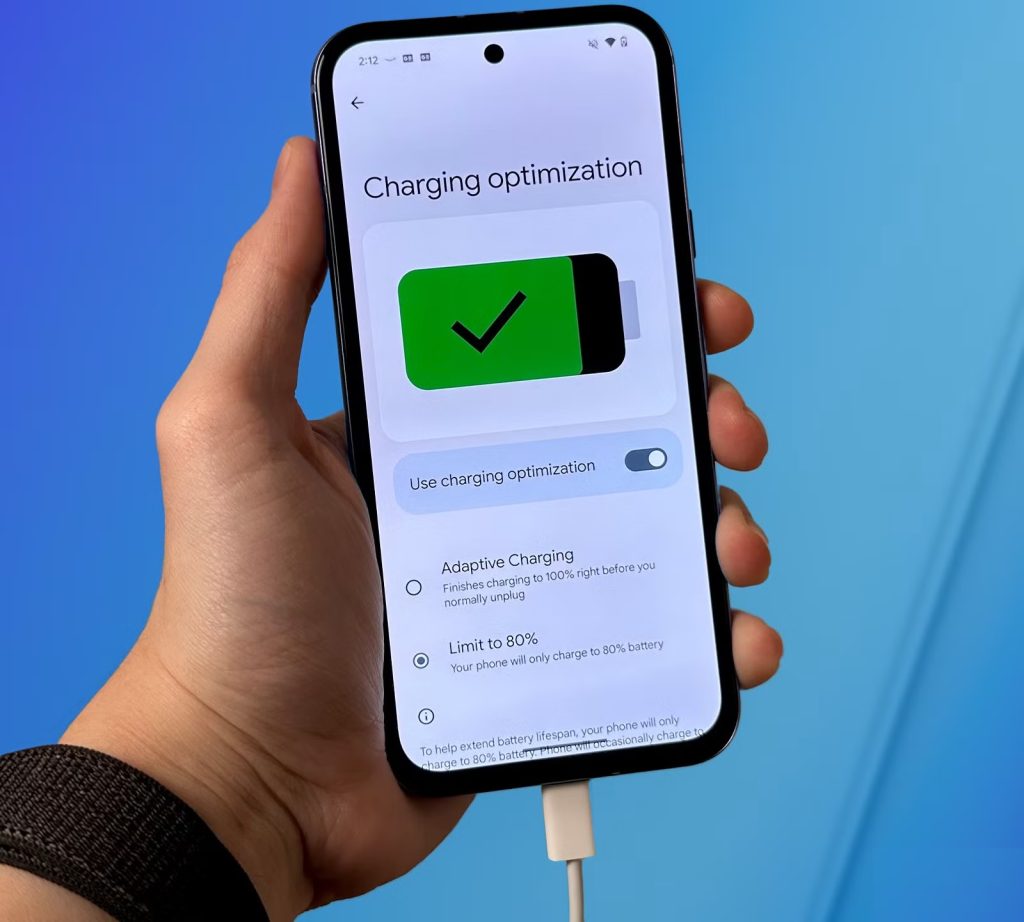
Try keeping your battery level between 20% and 80% most of the time. Many modern devices even have built-in options for this – Samsung calls it “Protect Battery,” while iPhones use “Optimized Battery Charging.”
2. Use the right charger
Cheap third-party chargers may save you a few dollars, but they can also shorten your battery’s lifespan. Always use certified chargers that meet your device’s voltage and current requirements. If your phone supports fast charging, use the manufacturer-approved adapter – it’s designed to balance speed and safety.
3. Avoid overheating your device
High temperatures are the number one battery killer. Heat speeds up the chemical aging process inside your phone’s battery, reducing capacity permanently. Avoid leaving your device:
- On a car dashboard under the sun
- Charging on soft surfaces like beds or couches
- Wrapped in cases that trap heat
If your phone feels unusually warm while charging, unplug it, close background apps, and let it cool down.
4. Enable auto power management features
In 2025, both Android and iOS come with smart power management powered by AI. These systems learn your habits – when you charge, when you use your phone most, and when it’s idle. Make sure you’ve turned these features on:
- Android: Adaptive Battery and Adaptive Charging
- iPhone: Optimized Battery Charging and Performance Management
These features dynamically control background activity, charging speed, and app performance to protect long-term battery health.
5. Reduce push notifications
Every ping, buzz, or vibration wakes up your screen and consumes energy. While it’s nice to know the world’s every update, limiting push notifications helps your battery (and your sanity).
- Review notifications under your settings and disable unnecessary alerts for apps you rarely use.
- Consider using Do Not Disturb or Focus Modes during work or sleep hours.
6. Use airplane mode when signal is weak
When your phone constantly searches for a network in areas with poor coverage, it burns through battery fast. If you’re traveling through a low-signal area or on a flight, turn on Airplane Mode to conserve energy.
7. Regularly restart your device
Just like humans, phones benefit from rest. Restarting your phone once or twice a week clears temporary processes and gives your system a fresh start. You’d be surprised how much smoother and more energy-efficient your device can become afterward.
8. Consider a battery replacement at the right time
Even with the best habits, no battery lasts forever. If your phone can’t hold a charge for more than a few hours despite optimization, replacing the battery might be more cost-effective than upgrading your device. Most manufacturers now offer affordable battery replacement programs, which can extend your phone’s lifespan by another year or two.
FAQs – quick answers to common battery drain questions
Even with all the battery wisdom in the world, we still end up asking the same questions every time our phone hits 15%. So, let’s clear up the most common battery drain doubts once and for all.
- Why is my phone battery draining so fast even when I’m not using it?
That’s usually because of background apps, location services, or push notifications that continue running when the screen is off. Go to your battery usage settings and check which apps are using power in the background – then restrict or uninstall the culprits.
- Does dark mode really save battery?
Yes, especially if your phone uses an OLED or AMOLED display. In dark mode, black pixels are turned off completely, meaning less energy is consumed. On LCD screens, the difference is minimal, but it still reduces eye strain and gives a small power boost.
- Is it bad to charge my phone overnight?
Not necessarily, but it depends on how often you do it. Constantly charging to 100% and staying plugged in for hours can generate heat and slightly wear down your battery. Use features like Optimized Battery Charging (iPhone) or Adaptive Charging (Android) to manage overnight charging safely.
- How often should I calibrate my battery?
Once every two to three months is enough. Frequent deep discharges to zero can actually harm lithium-ion batteries, so calibration should only be done occasionally when you notice inaccurate percentage readings or sudden drops.
- What apps help save battery life the most?
For Android users, Greenify and AccuBattery remain excellent options. They monitor and manage background processes efficiently. On iPhones, you don’t need third-party apps – iOS’s native battery tools are robust enough.
- Can a software update cause battery drain?
Yes – especially right after installing a major update. Your phone rebuilds caches and reindexes apps, which can temporarily increase battery usage. Give it a couple of days to stabilize. If drain persists, check for minor patch updates that often fix power consumption issues.
- Should I let my battery drop to 0% before charging?
No. Modern batteries don’t need full discharge cycles. In fact, doing that too often shortens their lifespan. Keep your charge between 20–80% whenever possible for optimal health.
- How do I know when it’s time to replace my phone battery?
If your phone shuts down unexpectedly, heats up quickly, or drops charge drastically even after optimization, it’s time. You can confirm by checking Battery Health (on iPhone) or using apps like AccuBattery (on Android). Anything below 80% capacity means a replacement is due.
- Which smartphones have the best battery life in 2025?
The top performers include the Samsung Galaxy S24 Ultra, iPhone 15 Pro Max, OnePlus 12, Asus ROG Phone 8, and Google Pixel 8 Pro – all capable of lasting well beyond a full day under normal use.
- Does fast charging reduce battery lifespan?
Not if done with certified chargers. Fast charging generates more heat, but modern smartphones are built with safeguards to handle it. Avoid using non-certified or cheap adapters, and you’ll be perfectly fine.
